
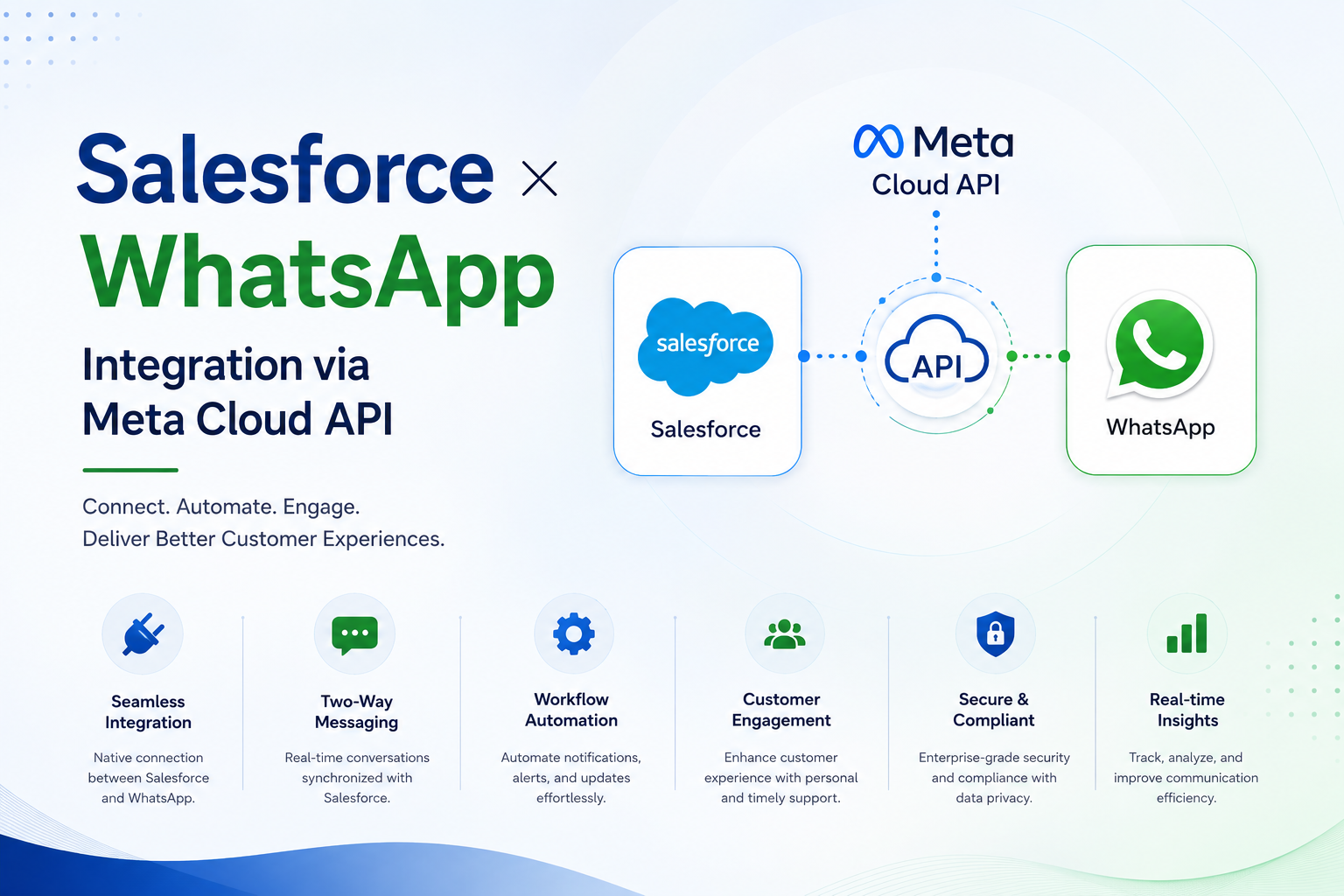
Salesforce × WhatsApp Integration via Meta Cloud API
Production-ready WhatsApp integration using Meta Cloud API, Apex, LWC and Platform Events.
Salesforce Developer
1. Overview & Architecture
This guide walks through building a complete, production-ready WhatsApp integration inside Salesforce using the Meta WhatsApp Cloud API. The integration enables agents to send and receive WhatsApp messages directly from Lead and Contact records and also provides a standalone inbox with real-time updates via Salesforce Platform Events.
1.1 What This Integration Does
- Receive incoming WhatsApp messages via a Meta webhook into Salesforce.
- Store all incoming and outgoing messages in the WAMessage__c custom object.
- Automatically link messages to Lead or Contact records by phone number.
- Send WhatsApp messages from Salesforce using the Meta Graph API.
- Display a WhatsApp-style chat UI on Lead and Contact record pages.
- Provide a standalone WhatsApp Inbox application.
- Push real-time updates using Salesforce Platform Events and EMP API.
1.2 Architecture Diagram
| Layer | Component | Direction | Protocol |
|---|---|---|---|
| User | WhatsApp Mobile App | Both ways | |
| Cloud | Meta Graph API | Both ways | HTTPS / REST |
| Gateway | Salesforce REST Apex | Inbound Webhook | HTTPS POST |
| CRM | Salesforce Org | Storage + UI | Apex / LWC |
Key Insight: Every incoming message follows this flow: WhatsApp User → Meta → Salesforce Webhook (Apex) → WAMessage__c → Platform Event → LWC UI. Outgoing messages follow: LWC → Apex Callout → Meta Graph API → WhatsApp User.
2. Step 1 — Meta Developer Setup
Before writing any Salesforce code, configure a Meta Developer App with WhatsApp enabled.
2.1 Create a Meta Developer Account
- Go to developers.facebook.com.
- Sign in using a Facebook account.
- Complete developer registration.
- Verify your account.
2.2 Create a Meta App
- Open Developer Dashboard.
- Click My Apps → Create App.
- Select Business.
- Enter App Name and Contact Email.
- Create the application.
2.3 Add WhatsApp Product
- Click Add Products.
- Select WhatsApp.
- Click Set Up.
2.4 Get API Credentials
| Credential | Purpose |
|---|---|
| Phone Number ID | Sending Messages |
| WhatsApp Business Account ID | Business Identification |
| Access Token | API Authentication |
| App Secret | Webhook Signature Verification |
2.5 Add Test Phone Number
Add a real phone number, verify it using OTP, and use it for sandbox testing.
2.6 Configure Webhook
Configure the Callback URL and Verify Token in the Meta App, verify successfully, and subscribe to the messages webhook field.
3. Step 2 — Salesforce Configuration
3.1 Create WAMessage__c Custom Object
Create a custom object to store every incoming and outgoing WhatsApp message.
| Field | API Name | Type |
|---|---|---|
| Message ID | MessageID__c | Text (External ID) |
| Message Content | MessageContent__c | Long Text Area |
| Message Type | MessageType__c | Text |
| Customer Phone | CustomerPhone__c | Text |
| Customer Name | CustomerName__c | Text |
| Business Phone | BusinessPhoneNumber__c | Text |
| Agent Name | AgentName__c | Text |
| Outgoing | Outgoing__c | Checkbox |
| Message Sent Time | MessageSentTime__c | DateTime |
| Lead | Lead__c | Lookup |
| Contact | Contact__c | Lookup |
3.2 Create Custom Labels
- WA_ACCESS_TOKEN
- WA_PHONE_NUMBER_ID
- WHATSAPPSECRET
3.3 Create Public Site
Create a Salesforce Site or Experience Cloud Site, activate it, and grant Guest User access to the WhatsAppWebhook Apex class.
3.4 Remote Site Settings
Add https://graph.facebook.com as a Remote Site.
3.5 Platform Event
Create WA_Message_Event__e with Message_Id__c and Customer_Phone__c fields.
4. Step 3 — WhatsAppWebhook Apex Class
This REST class handles webhook verification (GET) and incoming WhatsApp message processing (POST).
4.1 Class Annotation
@RestResource(urlMapping='/whatsapp/webhooks/v1/*')
global without sharing class WhatsAppWebhook {
}
4.2 doGet() — Webhook Verification
Meta sends a GET request during webhook configuration. Your Apex class must validate the verify token and return the hub.challenge value.
@HttpGet
global static void doGet() {
    RestRequest req = RestContext.request;
    RestResponse res = RestContext.response;
    if(req.params.get('hub.verify_token')=='mysecret2024'){
        res.responseBody = Blob.valueOf(req.params.get('hub.challenge'));
        res.statusCode = 200;
    }else{
        res.statusCode = 403;
    }
}
Note: Replace mysecret2024 with your own verification token and configure the same token in the Meta Developer Console.
4.3 doPost() — Incoming Message Processing
| Step | Description |
|---|---|
| 1 | Validate webhook signature using HMAC SHA-256. |
| 2 | Deserialize the JSON payload. |
| 3 | Extract metadata, sender phone number and profile information. |
| 4 | Determine the message type (text, image, video, audio, document, reaction). |
| 5 | Insert or update WAMessage__c using MessageID__c as External ID. |
| 6 | Find matching Lead or Contact using phone number. |
| 7 | Publish WA_Message_Event__e for real-time UI refresh. |
4.4 Helper Method — findLeadOrContact()
Create a helper method inside WhatsAppUtils that searches Contact and Lead records using the last 10 digits of the customer's phone number.
public static Id findLeadOrContact(String phone){
    // Normalize phone number
    // Search Contact
    // Search Lead
    // Return matching record Id
}
5. Step 4 — Sending Messages via Meta Graph API
5.1 WhatsAppUtils.sendTextMessage()
This method performs an HTTP POST request to the Meta Graph API and stores the outgoing message inside Salesforce.
public static WAMessage__c sendTextMessage(String content,String toPhone){
    HttpRequest req = new HttpRequest();
    req.setEndpoint('https://graph.facebook.com/v19.0/{PhoneNumberId}/messages');
    req.setMethod('POST');
    req.setHeader('Authorization','Bearer '+System.Label.WA_ACCESS_TOKEN);
    req.setHeader('Content-Type','application/json');
    // Build request body
    // Send HTTP request
    // Save WAMessage__c
}5.2 WhatsAppLWCService
| Method | Description |
|---|---|
| listAllMessages(customerPhone) | Returns all conversation messages ordered by CreatedDate. |
| getSingleMessage(recordId, customerPhone) | Returns one message after a Platform Event notification. |
| sendTextMessage(messageContent,toPhone) | Calls WhatsAppUtils.sendTextMessage(). |
| listAllMessageByCustomer(customerPhone) | Cacheable method for Contact or Lead specific message retrieval. |
6. Step 5 — WhatsApp Chat Lightning Web Component
The WhatsAppChat Lightning Web Component provides a WhatsApp-style interface directly inside Lead and Contact record pages.
6.1 Component Files
- whatsAppChat.html
- whatsAppChat.js
- whatsAppChat.css
- whatsAppChat.js-meta.xml
6.2 JavaScript Controller Responsibilities
| Method | Responsibility |
|---|---|
| wiredLead / wiredContact | Retrieve phone number and customer details. |
| _tryLoadMessages() | Loads messages after phone is available. |
| _loadMessages() | Fetches complete conversation history. |
| _subscribeToEvents() | Subscribes to Platform Events. |
| _handleEvent() | Processes incoming Platform Events. |
| handleSendMessage() | Sends WhatsApp messages. |
| _scrollToBottom() | Automatically scrolls chat to the newest message. |
6.3 Component Configuration
<LightningComponentBundle>
  <apiVersion>58.0</apiVersion>
  <isExposed>true</isExposed>
  <targets>
    <target>lightning__RecordPage</target>
  </targets>
</LightningComponentBundle>
6.4 Deploy to Salesforce
- Deploy the component using Salesforce CLI.
- Open a Lead or Contact record.
- Click Edit Page.
- Drag the whatsAppChat component onto the Lightning Page.
- Save and Activate the page.
7. Step 6 — WhatsAppInbox Standalone Lightning Web Component
The WhatsAppInbox component provides a complete WhatsApp Web-like experience inside Salesforce. It displays a conversation list on the left and the active chat window on the right, allowing agents to manage multiple customer conversations efficiently.
7.1 WhatsAppInboxService Apex Class
This Apex service powers the inbox and exposes methods for retrieving conversations and sending messages.
| Method | Description |
|---|---|
| getAllConversations() | Returns unique conversations grouped by customer phone number and ordered by latest message. |
| getMessagesByPhone(phone) | Returns the latest messages for the selected phone number. |
| sendMessage(phone, content) | Sends a WhatsApp message using WhatsAppUtils and stores the outgoing record. |
7.2 ConversationWrapper Class
The service returns a wrapper object containing conversation information.
public class ConversationWrapper {
    @AuraEnabled public String phone;
    @AuraEnabled public String name;
    @AuraEnabled public String initial;
    @AuraEnabled public String lastMessage;
    @AuraEnabled public String objType;
    @AuraEnabled public String recordId;
    @AuraEnabled public Boolean outgoing;
    @AuraEnabled public Integer msgCount;
    @AuraEnabled public Datetime lastDate;
}
7.3 Inbox JavaScript Features
- Loads all conversations during component initialization.
- Displays customer name, phone number and last message.
- Highlights the selected conversation.
- Loads messages dynamically.
- Groups messages by Today, Yesterday and previous dates.
- Supports client-side search.
- Refreshes automatically using Platform Events.
- Shows View Lead and View Contact links when available.
7.4 Add Inbox to Lightning App
- Open App Manager.
- Edit or create a Lightning App.
- Create a new App Page.
- Drag the whatsAppInbox component onto the page.
- Save and Activate.
- Add the page to the navigation menu.
8. Step 7 — Platform Events for Real-Time Updates
Platform Events allow every open Lightning component to receive new WhatsApp messages instantly without refreshing the page.
8.1 Real-Time Flow
| Step | Actor | Action |
|---|---|---|
| 1 | WhatsApp User | Sends a message. |
| 2 | Meta Cloud API | Posts the webhook payload to Salesforce. |
| 3 | WhatsAppWebhook Apex | Processes the incoming payload. |
| 4 | Salesforce | Creates or updates the WAMessage__c record. |
| 5 | Apex | Publishes WA_Message_Event__e. |
| 6 | Platform Event Bus | Broadcasts the event. |
| 7 | Lightning Web Component | Receives the Platform Event through EMP API. |
| 8 | JavaScript | Loads the latest message and updates the UI. |
| 9 | User Interface | Displays the new message instantly and scrolls to the bottom. |
8.2 EMP API Subscription
import { subscribe, onError } from 'lightning/empApi';

subscribe('/event/WA_Message_Event__e', -1, response => {
    // Handle incoming Platform Event
});
The replay ID -1 subscribes only to new events published after the subscription is established. Use -2 to replay retained events (available for up to 72 hours).
9. Step 8 — Testing & Deployment
Before deploying the WhatsApp integration to production, verify that every configuration has been completed correctly. This checklist helps ensure that the webhook, API authentication, Salesforce configuration, and Lightning components are functioning as expected.
9.1 Pre-Deployment Checklist
| Area | Verification |
|---|---|
| Meta Setup | App is in Live Mode, Webhook verified, Messages subscription enabled. |
| Custom Labels | WA_ACCESS_TOKEN, WA_PHONE_NUMBER_ID and WHATSAPPSECRET are populated correctly. |
| Remote Site Settings | https://graph.facebook.com has been added and activated. |
| Public Site | WhatsAppWebhook Apex class is accessible to the Guest User profile. |
| Object Permissions | Users have Create, Read, Edit and Delete access on WAMessage__c. |
| Platform Event | WA_Message_Event__e exists with required fields. |
| Lightning Components | whatsAppChat and whatsAppInbox deploy successfully without compilation errors. |
9.2 End-to-End Testing Procedure
- Open a Lead or Contact record containing the same mobile number registered with your WhatsApp test account.
- Send a WhatsApp message from the test phone to the business WhatsApp number.
- Verify that Salesforce Debug Logs record the incoming webhook request.
- Confirm that a new WAMessage__c record is created with Outgoing__c = false.
- Verify that the Lightning chat component displays the message immediately.
- Reply from Salesforce using the embedded chat window.
- Confirm that the HTTP callout to Meta Graph API succeeds.
- Verify that the customer receives the reply on WhatsApp.
- Ensure another WAMessage__c record is created with Outgoing__c = true.
9.3 Common Issues and Solutions
| Issue | Possible Solution |
|---|---|
| Webhook returns HTTP 403 | Verify that the Meta Verify Token matches the token configured in the Apex class. |
| Webhook signature validation fails | Ensure WHATSAPPSECRET contains the Meta App Secret rather than the Access Token. |
| Lead or Contact is not linked | Check that phone numbers match using the last 10 digits. |
| HTTP Callout Exception | Confirm that Remote Site Settings include graph.facebook.com and that the access token is valid. |
| Real-time updates are not working | Verify Platform Event subscription and inspect browser console for EMP API errors. |
| Outgoing messages are not saved | Confirm that WAMessage__c records are inserted after the API call and required fields are populated. |
10. Summary
Congratulations! You have successfully built a complete production-ready WhatsApp integration for Salesforce using the Meta WhatsApp Cloud API. The solution supports real-time messaging, automatic Lead and Contact matching, inbound webhook processing, outbound messaging, and Lightning Web Components for an intuitive chat experience.
Components Created
| Component | Description |
|---|---|
| WAMessage__c | Stores every incoming and outgoing WhatsApp message. |
| WhatsAppWebhook | REST Apex endpoint for webhook verification and message processing. |
| WhatsAppUtils | Utility class responsible for Meta Graph API callouts. |
| WhatsAppLWCService | Aura-enabled service for Lightning Web Components. |
| WhatsAppInboxService | Provides conversation data for the standalone inbox. |
| whatsAppChat | Embedded WhatsApp chat component for Lead and Contact record pages. |
| whatsAppInbox | Standalone WhatsApp Web-style inbox application. |
| WA_Message_Event__e | Platform Event used for instant UI updates. |
Future Enhancements
- Add support for image, audio, video and document messages.
- Display media previews inside Lightning Web Components.
- Implement WhatsApp Template Messages for conversations outside the 24-hour messaging window.
- Integrate Agentforce or Einstein AI for intelligent automated responses.
- Support conversation assignment to multiple support agents.
- Track delivery status, read receipts and message analytics.
- Create dashboards and reports for WhatsApp conversation metrics.
- Add Omni-Channel integration for customer support teams.