
Salesforce to Google Drive Integration
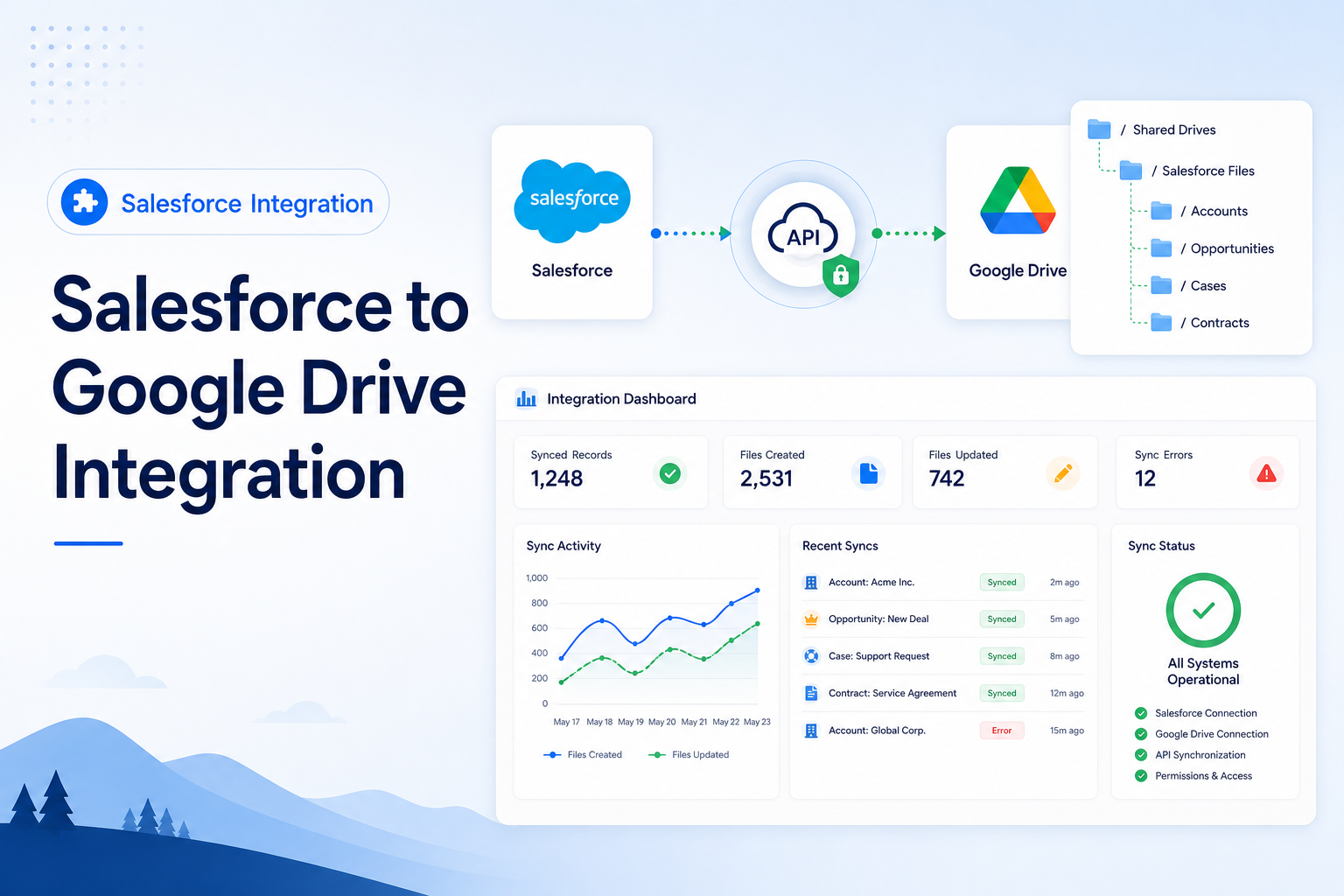
Integrate Salesforce with Google Drive to automatically upload, organize, and manage files using APIs and secure authentication.
Salesforce Developer
Abstract
Organizations often store business documents such as contracts, proposals, invoices, and customer-related files in Google Drive. However, users frequently switch between Salesforce and Google Drive to access these files, reducing productivity.
This solution demonstrates how to integrate Google Drive with Salesforce using OAuth 2.0, Google Drive API, and Salesforce Named Credentials. The integration enables users to access, upload, and manage Google Drive files directly from Salesforce records while maintaining security and centralized document management.
Solution
The integration establishes secure communication between Salesforce and Google Drive using Google's OAuth 2.0 authentication mechanism.
Business Requirements
- Access Google Drive files from Salesforce.
- Upload files from Salesforce to Google Drive.
- Create folders automatically in Google Drive for Salesforce records.
- Store Google Drive file URLs in Salesforce.
- Reduce Salesforce file storage consumption.
- Improve document management and collaboration.
Architecture
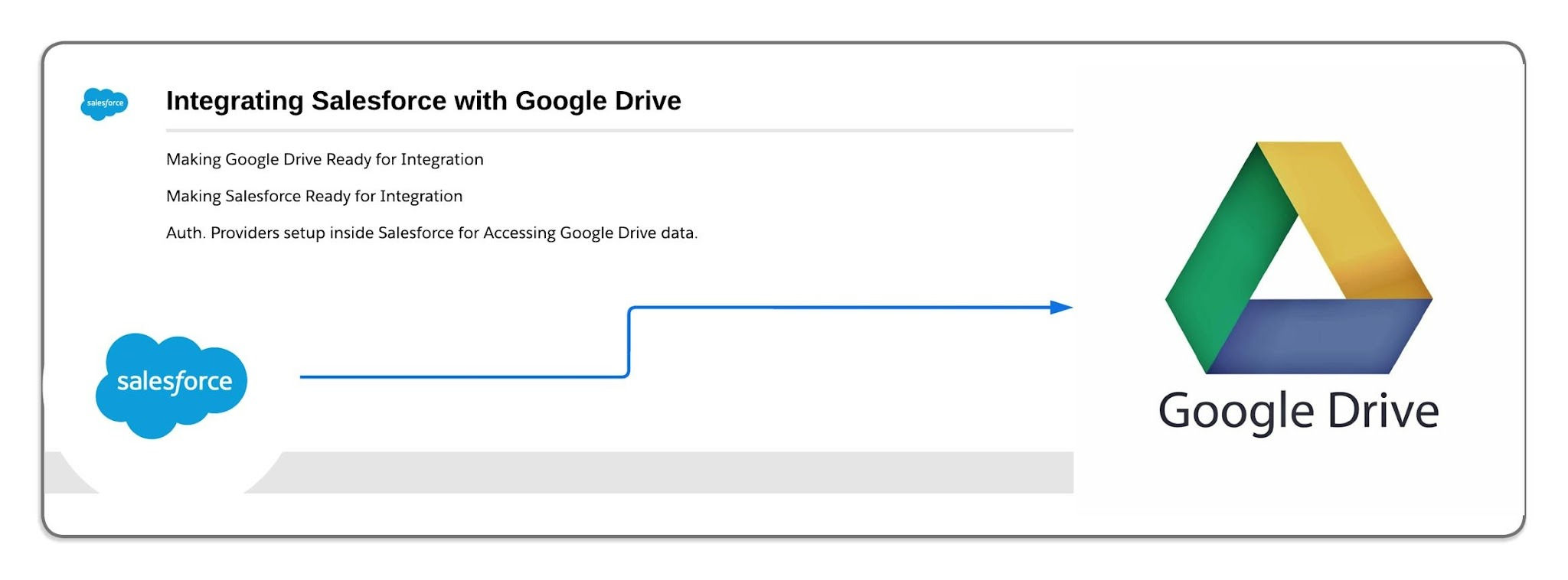
Components:
- Salesforce
- Google Cloud Platform
- Google Drive API
- OAuth 2.0 Authentication
- Salesforce Named Credential
- Apex Classes / Flow Automation
Integration Flow
- User uploads a file in Salesforce.
- Salesforce calls Google Drive API.
- OAuth token is used for authentication.
- File is uploaded to Google Drive.
- Google Drive returns File ID and URL.
- Salesforce stores the URL on the related record.
Step-by-Step Guide
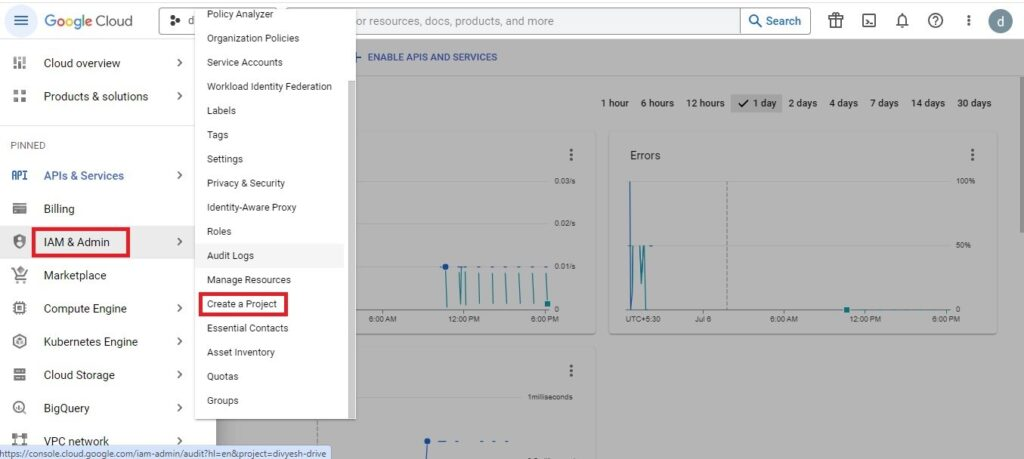
Step 1: Create a Project in Google Cloud Platform
Before connecting Salesforce with Google Drive, you must create a project in Google Cloud Platform (GCP). This project will be used to manage APIs, authentication settings, permissions, and other Google services required for the integration.
Procedure
- Open Google Cloud Console: https://console.cloud.google.com
- Sign in using your Google account.
- From the navigation menu, select: IAM & Admin → Create Project.
- Enter a meaningful project name.
- Click Create.
Once the project is created, it will act as the central location for managing Google Drive API configurations and OAuth credentials.
Step 2: Generate OAuth Credentials
Salesforce requires secure authentication to access Google Drive resources. This is achieved through OAuth 2.0 credentials.
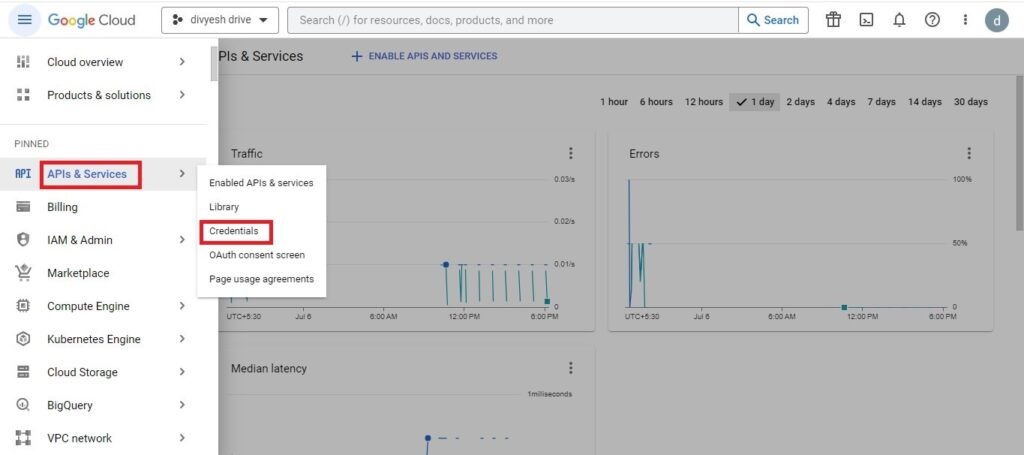
Procedure
- Navigate to: APIs & Services → Credentials.
- Select Create Credentials.
- Choose OAuth Client ID.
- Provide a suitable name for the credential.
- Configure the following URLs based on your application type:
- Authorized JavaScript Origins — used for browser-based applications. Example:
https://yourdomain.my.salesforce.com - Authorized Redirect URIs — used for handling OAuth responses. Example:
https://yourdomain.my.salesforce.com/services/authcallback/GoogleDrive
- Authorized JavaScript Origins — used for browser-based applications. Example:
- Click Create.
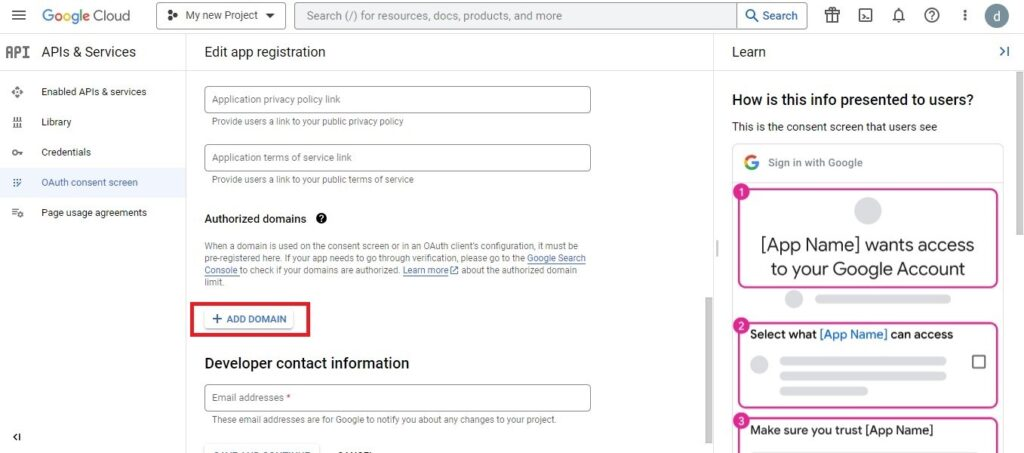
Google generates a Client ID and Client Secret. Store these values securely as they will be required during Salesforce configuration.
Step 3: Enable Google Drive API
The Google Drive API must be activated before Salesforce can communicate with Google Drive.
Procedure
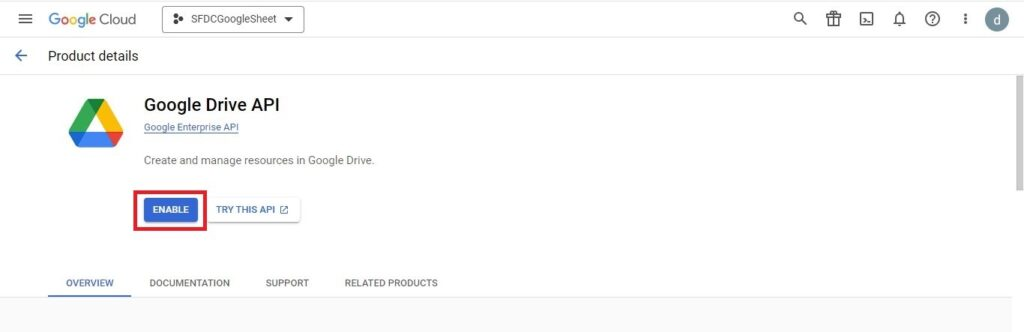
- Navigate to: APIs & Services → Library.
- Search for: Google Drive API.
- Open the API page.
- Click Enable.
Once enabled, your project can make requests to Google Drive.
Step 4: Configure Salesforce Custom Settings
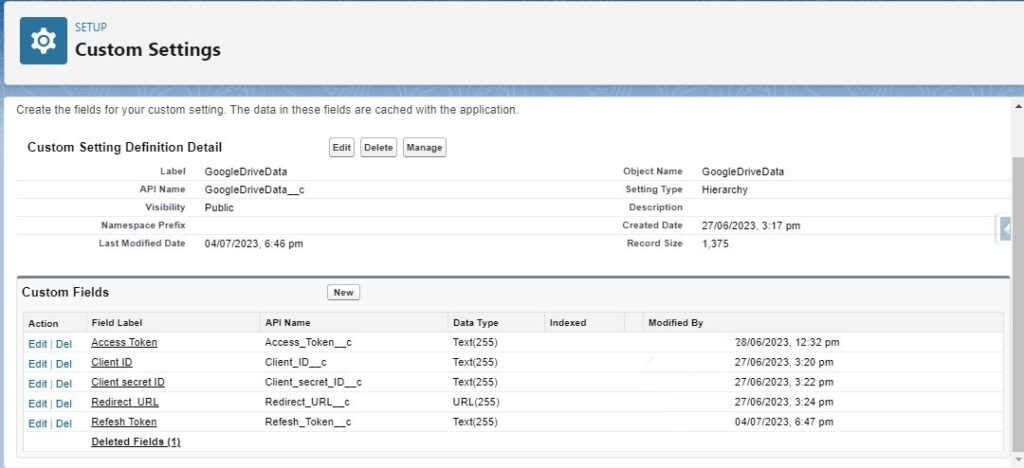
Custom Settings can be used to store integration-related values such as Client ID, Client Secret, Access Token, Refresh Token, and Folder IDs.
Procedure
- In Salesforce Setup, search for: Custom Settings.
- Create a new custom setting.
- Add the following fields:
| Field Name | Purpose |
|---|---|
| Client_Id__c | Google Client ID |
| Client_Secret__c | Google Client Secret |
| Access_Token__c | OAuth Access Token |
| Refresh_Token__c | OAuth Refresh Token |
| Folder_Id__c | Google Drive Folder ID |
Step 5: Configure Remote Site Settings
Salesforce requires external endpoints to be whitelisted before making callouts.
Procedure
- Navigate to: Setup → Remote Site Settings.
- Create a new remote site record for Google Authentication:
https://accounts.google.com - Create another remote site record for Google APIs:
https://www.googleapis.com - Save both records.
These configurations allow Salesforce Apex callouts to communicate with Google services.
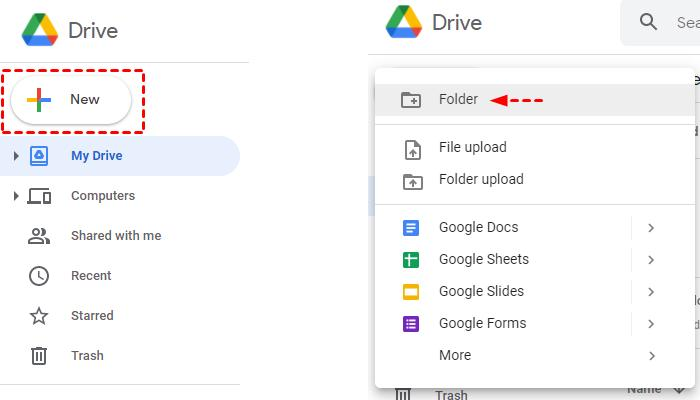
Step 6: Create a Destination Folder in Google Drive
A dedicated folder should be created to store files uploaded from Salesforce.
Procedure
- Open Google Drive.
- Click New.
- Select Folder.
- Enter a folder name.
- Click Create.
- Copy the Folder ID from the URL for later use in Apex code.
Step 7: Authorize Salesforce to Access Google Drive
The first authentication process requires user consent and authorization.
Process Overview
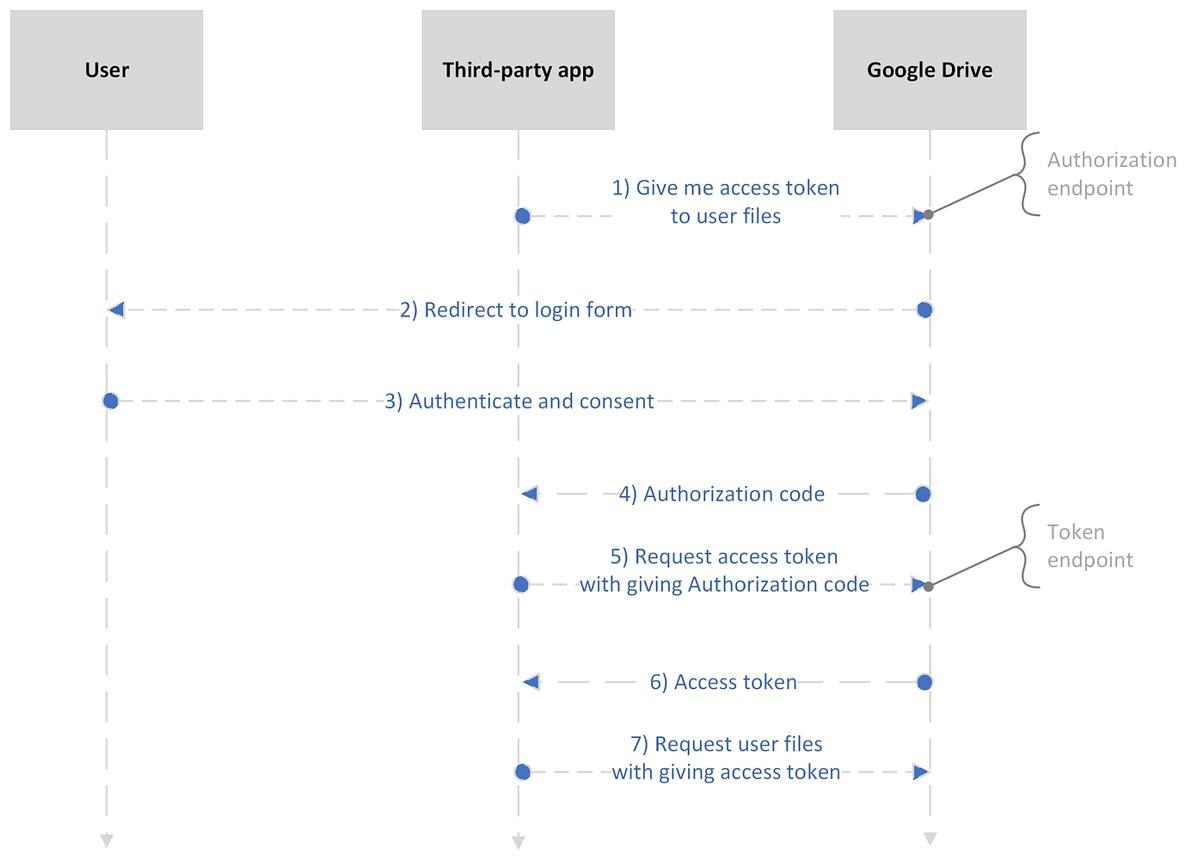
- Generate an OAuth authorization URL.
- Redirect the user to Google's consent page.
- User grants access.
- Google returns an authorization code.
- Salesforce exchanges the code for access and refresh tokens.
OAuth Authorization Endpoint
https://accounts.google.com/o/oauth2/authRequired parameters include:
- Client ID
- Redirect URI
- Scope
- Response Type
- Access Type
After successful authorization, Google returns a temporary authorization code.
Step 8: Retrieve Access Token
Once the authorization code is received, Salesforce sends a POST request to Google's token endpoint.
Token Endpoint
https://accounts.google.com/o/oauth2/tokenRequest Parameters
| Parameter | Description |
|---|---|
| code | Authorization code |
| client_id | Google Client ID |
| client_secret | Google Client Secret |
| redirect_uri | Redirect URL |
| grant_type | authorization_code |
The response contains the Access Token, Refresh Token, and Expiry Information. Store these values securely in Salesforce.
Step 9: Refresh Expired Access Tokens
Access tokens eventually expire. Salesforce can use the refresh token to generate a new access token automatically.
Refresh Endpoint
https://accounts.google.com/o/oauth2/tokenRequired Parameters
- Client ID
- Client Secret
- Refresh Token
- grant_type=refresh_token
The response returns a new access token without requiring user login.
Step 10: Generate Files from Salesforce
Salesforce can create reports and export them into formats such as Excel before uploading them to Google Drive.
Example Scenario
- Query a Salesforce report.
- Generate Excel output.
- Convert the report into a Blob.
- Prepare the file for upload.
Possible file types: Excel, PDF, CSV, Text Files.
Step 11: Create a File Record in Google Drive
Before uploading content, Google Drive requires a file entry to be created.
API Endpoint
https://www.googleapis.com/drive/v3/filesMetadata
Include:
- File Name
- MIME Type
- Parent Folder ID
Google returns a unique File ID after creation.
Step 12: Upload File Content to Google Drive
Using the generated File ID, Salesforce uploads the actual document content.
Upload Endpoint
https://www.googleapis.com/upload/drive/v3/files/{FileId}Process
- Send file content as Blob.
- Include OAuth access token.
- Execute HTTP PATCH request.
- Verify upload success.
After completion, the file becomes available in the specified Google Drive folder.
Benefits
- Secure authentication using OAuth 2.0
- Automated file management
- Reduced Salesforce storage costs
- Easy document sharing
- Improved collaboration
- Centralized document repository
Limitations
- Requires Google Cloud configuration
- OAuth token management is necessary
- Google API usage quotas may apply
- Additional development required for advanced features
Conclusion
Google Drive and Salesforce integration provides an efficient method for managing documents outside of Salesforce while maintaining easy accessibility. By leveraging Google Cloud Platform, OAuth authentication, Google Drive APIs, and Salesforce Apex callouts, organizations can automate file storage, improve collaboration, and optimize Salesforce storage usage. This integration is particularly beneficial for businesses that frequently generate reports, invoices, contracts, and customer documents within Salesforce and need a scalable external storage solution.