How to Integrate Google Calendar with Salesforce
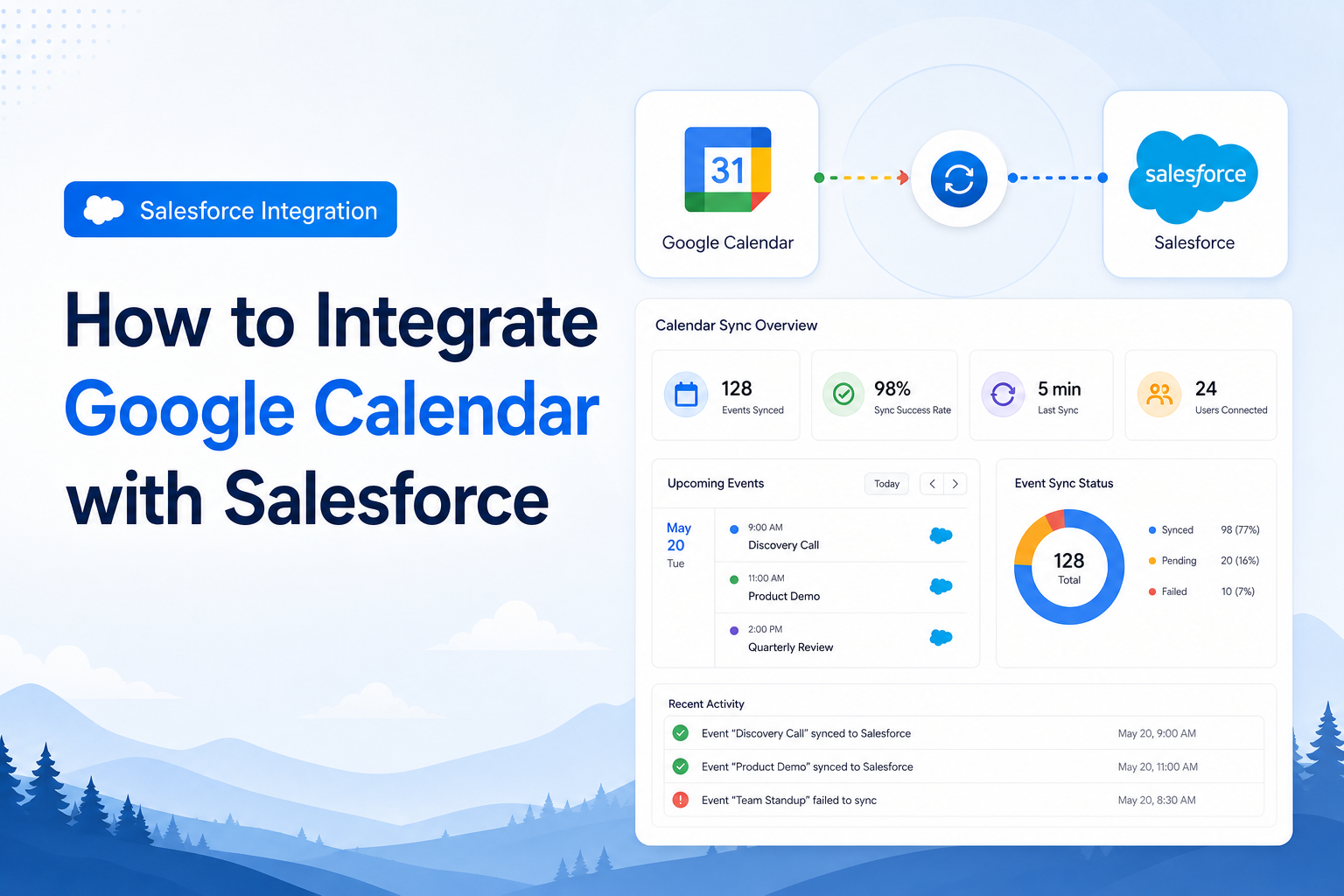
Learn how to integrate Google Calendar with Salesforce for seamless synchronization of events and activities.
Salesforce Developer
Abstract
Organizations using Salesforce often rely on Google Calendar for daily scheduling. Without a direct connection between the two platforms, users are forced to manually update events in both systems — leading to missed meetings, scheduling conflicts, and lost productivity.
This article explains how to integrate Google Calendar with Salesforce so that events, tasks, and activities sync automatically between both platforms. The solution uses Salesforce's native Google Apps integration and Einstein Activity Capture to keep your calendar and CRM data in alignment.
| Attribute | Detail |
|---|---|
| Platform | Salesforce (Lightning Experience) |
| Integration Type | Google Calendar Sync / Einstein Activity Capture |
| Sync Modes | One-way or Bidirectional |
| Project | Calendar & Activity Management |
Solution
The integration involves three core components working together.
What is Google Calendar Sync?
Google Calendar Sync is Salesforce's built-in feature that connects your Salesforce org to a Google Workspace account. It allows Salesforce events to appear in Google Calendar and vice versa, depending on the sync direction configured by the administrator.
Einstein Activity Capture
Einstein Activity Capture (EAC) is a Salesforce feature that automatically logs emails and calendar events to the relevant Salesforce records — such as Contacts, Leads, and Opportunities — without requiring manual data entry.
Core Logic
- Salesforce events are pushed to Google Calendar via the Google Apps API.
- Google Calendar events are pulled into Salesforce and related to CRM records.
- Changes in either platform trigger a sync within 2 to 5 minutes.
- Event deletions are mirrored across both platforms when bidirectional sync is active.
Step-by-Step Guide
Step 1: Enable Google Apps Integration in Salesforce
- Log in to Salesforce as a System Administrator.
- Click the gear icon (Setup) in the top-right corner.
- In the Quick Find box, search for "Google Apps" and select Google Apps Settings.
- Toggle Enable Google Apps Services to On.
- Enter your Google Workspace domain (e.g., yourcompany.com).
- Click Save.
Step 2: Connect Your Google Account
- From the Salesforce home page, click your profile avatar.
- Go to Settings → Email & Calendar → My Google Settings.
- Click Connect to Google and authenticate with your Google account.
- Grant Salesforce the requested permissions to access Google Calendar.
- Confirm the connection — you will see: "Your Google account is connected."
Step 3: Configure Sync Settings
- Return to My Google Settings in Salesforce.
- Under Sync Settings, select your sync direction:
- Salesforce to Google — Salesforce events appear in Google Calendar.
- Google to Salesforce — Google events appear in Salesforce.
- Bidirectional — Events sync both ways (recommended).
- Set the date range for events to sync (e.g., 30 days past, 60 days future).
- Click Save to apply changes.
Step 4: Enable Einstein Activity Capture (Optional)
- In Setup, search for Einstein Activity Capture.
- Click Get Started and follow the configuration wizard.
- Connect your Google Workspace account when prompted.
- Assign the feature to users or profiles as needed.
- Configure which records (Contacts, Leads, Opportunities) events should log to.
- Click Save and Activate.
Conclusion
Integrating Google Calendar with Salesforce eliminates the need for manual data entry across two platforms. With bidirectional sync and Einstein Activity Capture enabled, your team's calendar activity is automatically reflected in Salesforce — keeping CRM records accurate and your team focused on selling rather than administrative tasks.
The setup is straightforward and requires no custom code, making it accessible to Salesforce administrators at any experience level. Once active, the integration runs quietly in the background, syncing events and activities within minutes of any change.
Key Takeaways
- Native Salesforce integration — no third-party tools or custom code required.
- Supports one-way and bidirectional sync depending on your team's workflow.
- Einstein Activity Capture automatically logs calendar events to CRM records.
- Sync runs automatically every 2 to 5 minutes after initial setup.
- Setup can be completed by a Salesforce administrator in under 30 minutes.
Images / Screenshots
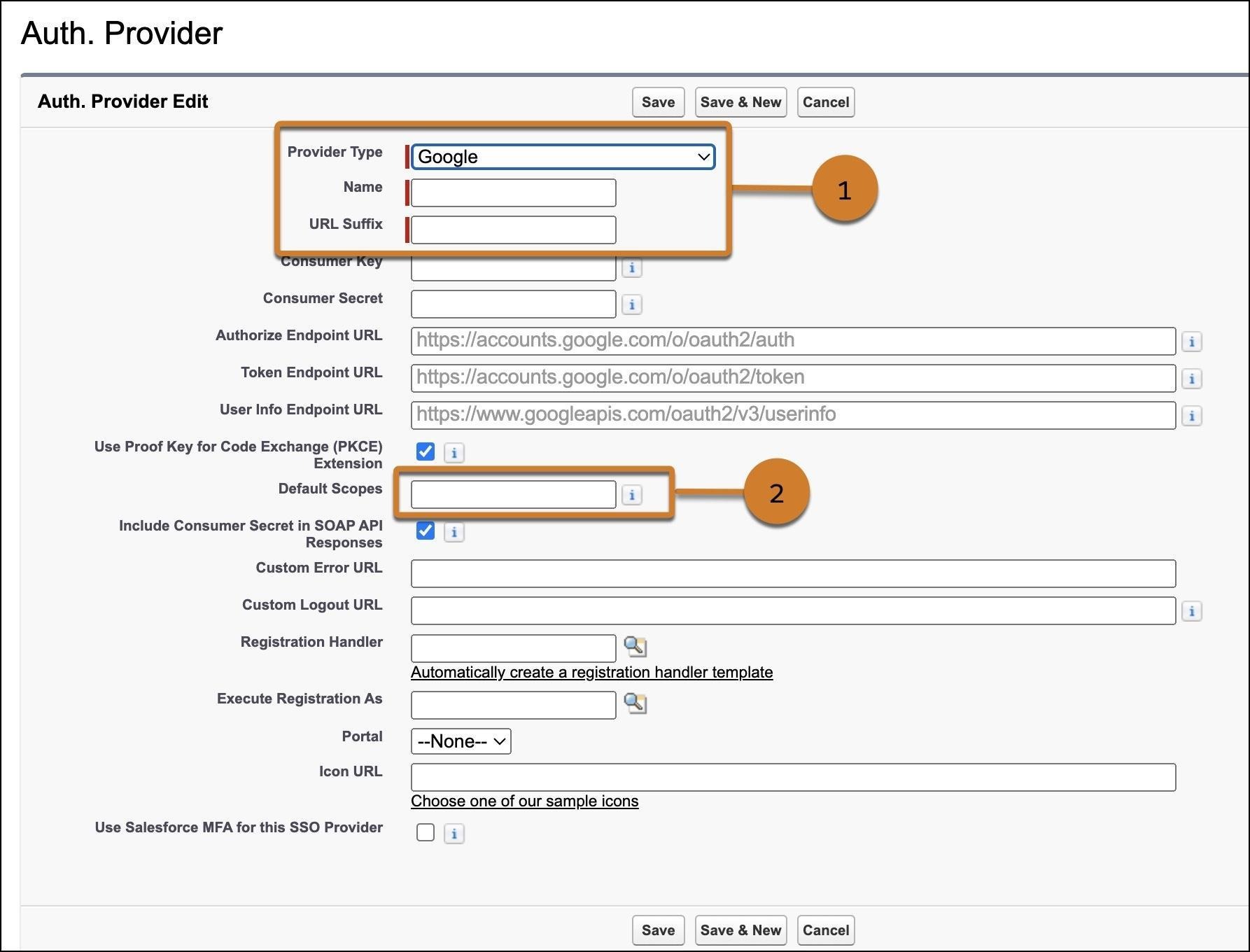
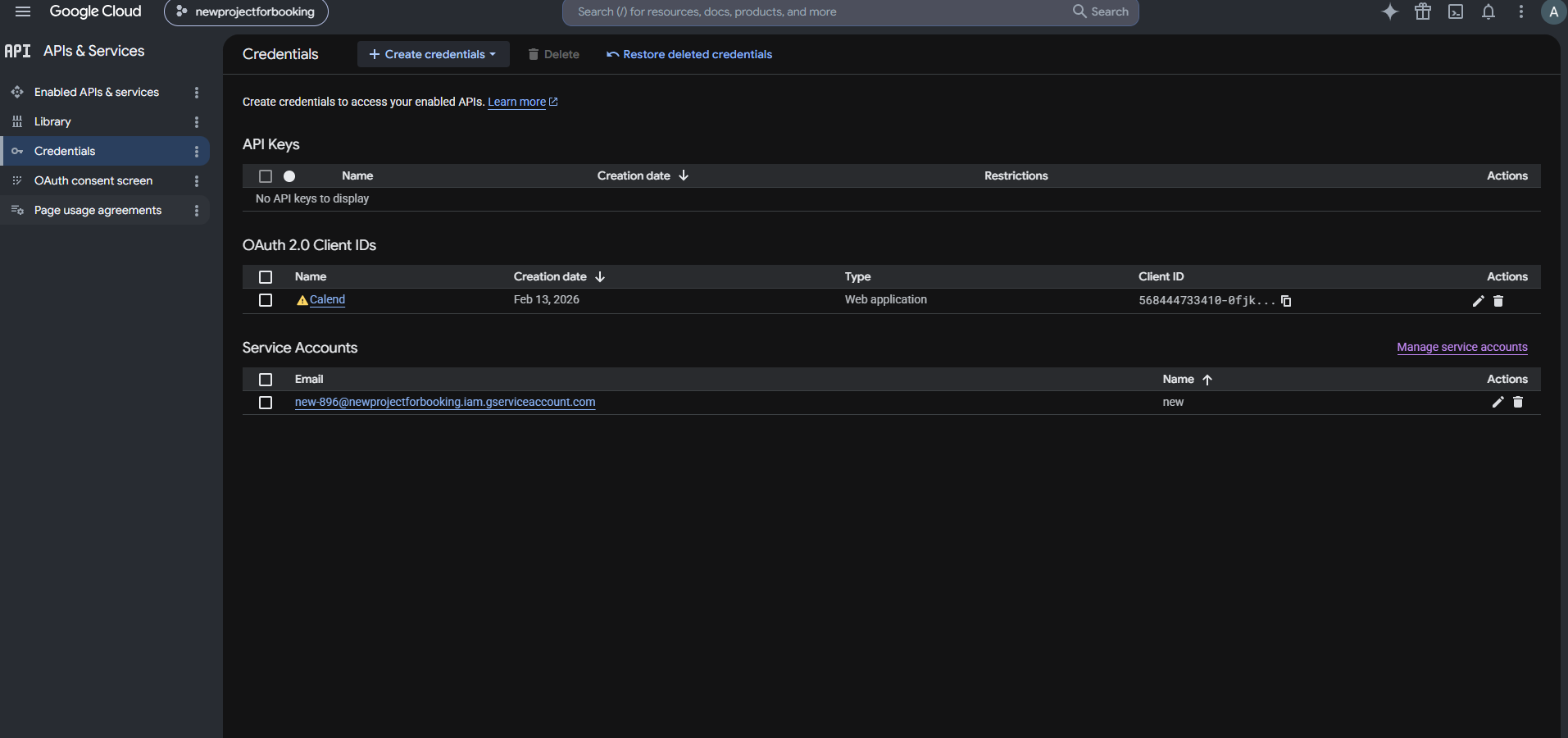
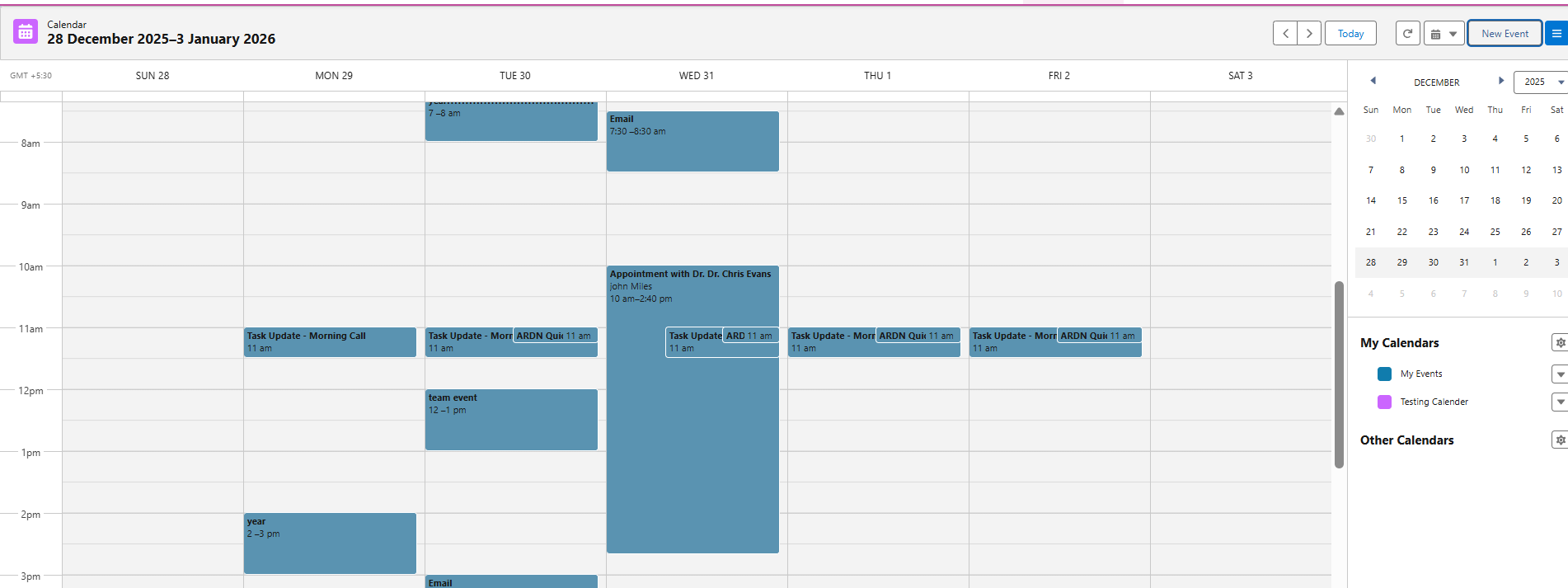
The following screenshots illustrate the key configuration screens referenced in this article.
- Screenshot 1: Google Apps Settings in Salesforce Setup
- Screenshot 2: My Google Settings — Sync Configuration
- Screenshot 3: Salesforce Calendar View with Synced Google Events