How I Added Real-Time Travel Time to a Doctor Booking App in Salesforce
Enhance a Salesforce doctor booking application by integrating real-time travel time and route estimation.
Salesforce LWC Developer
1. Abstract
In a Doctor Appointment Booking Application built natively on Salesforce, patients needed to know how long it would take to travel to the clinic before confirming their appointment. Without this information, patients were often caught off-guard by travel distance, leading to late arrivals or missed appointments.
This article explains how we solved this by integrating the OpenRouteService (ORS) API with Salesforce to calculate and display real-time travel time during the booking process. The solution uses Apex for API callouts, Lightning Web Components (LWC) for display, and also factors the travel time into the doctor's overall calendar block — preventing scheduling conflicts.
| Attribute | Detail |
|---|---|
| Platform | Salesforce (LWC + Apex) |
| External API | OpenRouteService API (Geocoding + Directions) |
| Map Display | OpenStreetMap |
| Project | Doctor Appointment Booking Application |
2. Solution
The solution involved three components working together:
What is OpenRouteService (ORS)?
OpenRouteService is a free, open-source routing API similar to Google Maps Directions API. It provides geocoding (converting addresses to coordinates) and directions (calculating travel time between two locations). Being open-source and free, it is well-suited for Salesforce integrations without additional licensing costs.
Core Logic
- Fetch the doctor address from the Doctor record and the patient address from the Lead record
- Convert both addresses to latitude/longitude using ORS Geocoding API via Apex callout
- Pass both coordinates to ORS Directions API to get the travel time in minutes
- Display the travel time on the LWC booking form in real time
- Calculate overall reserved time using the formula below and block that on the calendar
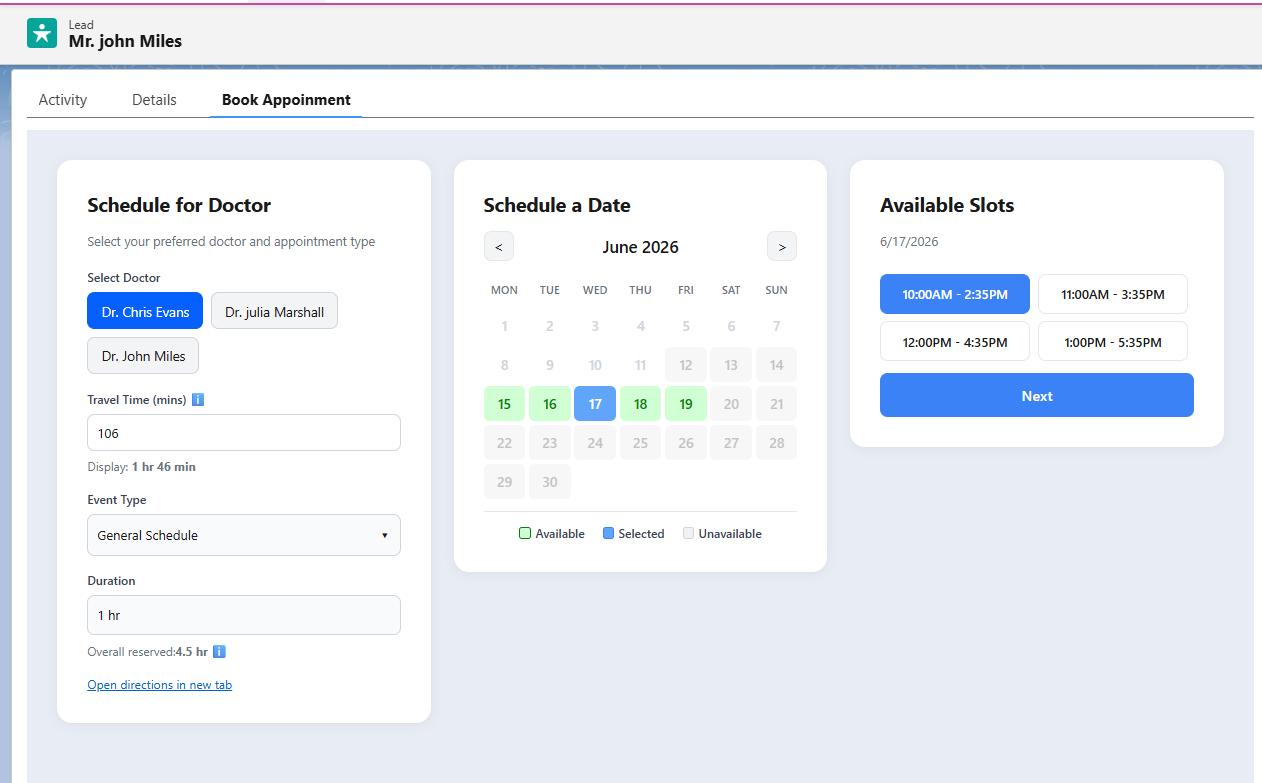
Overall Reserved Time = Appointment Duration + Round-Trip Travel Time

Example: 1 hr appointment + (23 min × 2) = 1.8 hrs blocked on calendar
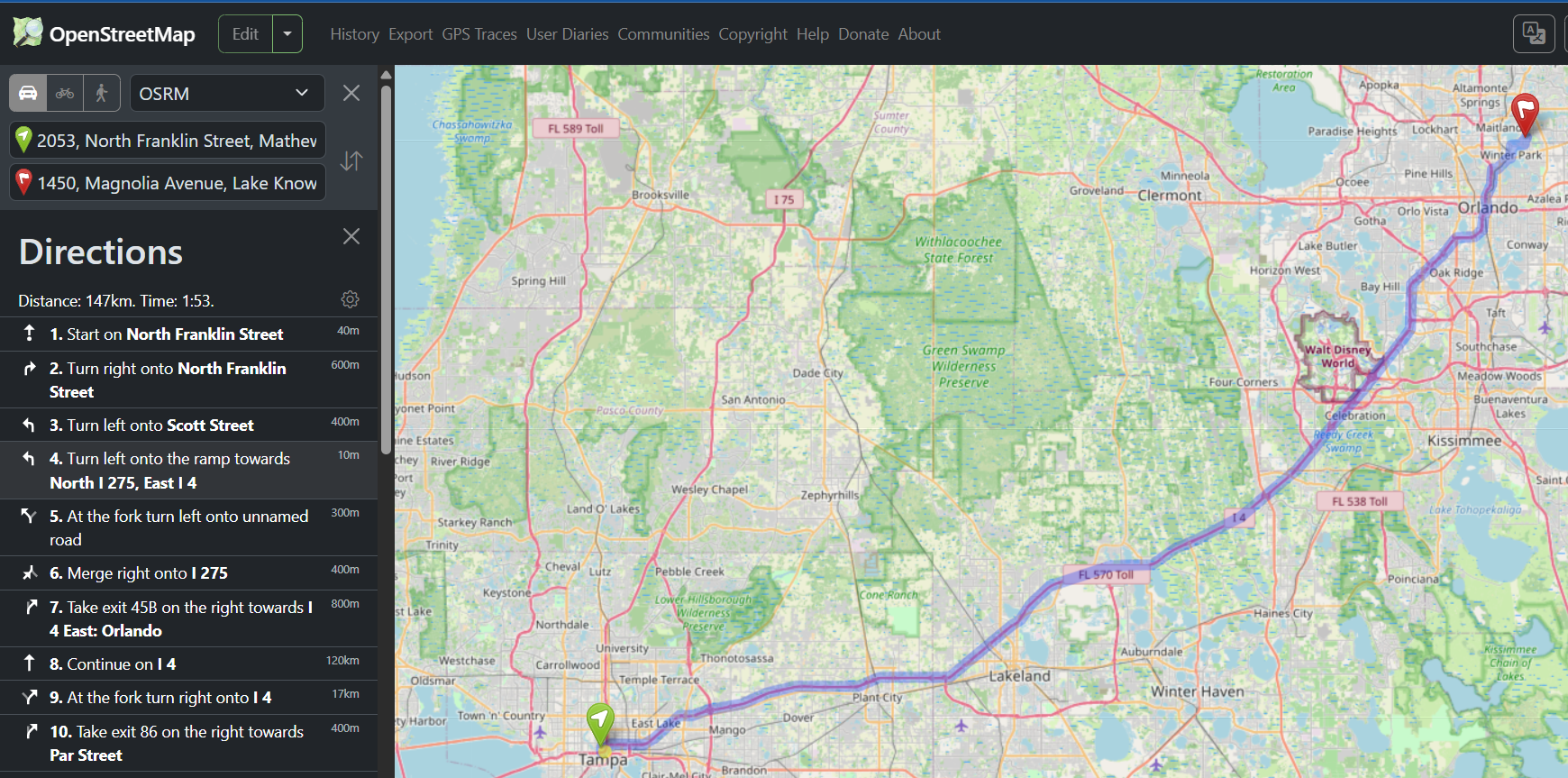
Route Display
An "Open directions in new tab" link is rendered in the LWC component. When clicked, it opens OpenStreetMap in a new browser tab showing the full route between the doctor and patient locations. This gives the patient a clear visual of the journey before confirming.
3. Step-by-Step Guide
Get an OpenRouteService API Key
Sign up at openrouteservice.org and generate a free API key from your dashboard. This key is used in the Apex HTTP callout headers.
Add Remote Site Settings in Salesforce
Go to Setup → Remote Site Settings → New. Add the ORS API endpoint (https://api.openrouteservice.org) as a remote site. This allows Salesforce Apex to make outbound HTTP callouts to ORS without being blocked.
Add CSP Trusted Sites in Salesforce
Go to Setup → CSP Trusted Sites → New. Add both OpenRouteService (https://api.openrouteservice.org) and OpenStreetMap (https://www.openstreetmap.org) URLs. This allows Lightning Web Components to load map content and open direction links securely in the browser.
Write Apex Method — Geocoding (Address to Coordinates)
Create an Apex class with a method that takes an address string as input and calls the ORS Geocoding API. The API returns latitude and longitude values. Store both coordinate pairs — one for the doctor, one for the patient (Lead).
Write Apex Method — Directions (Travel Time)
Write a second Apex method that accepts two sets of coordinates (doctor and patient) and calls the ORS Directions API. The API returns the route summary including travel duration in seconds, which you convert to minutes for display.
Calculate Overall Reserved Time in Apex
In the same Apex class, compute the overall reserved time: Appointment Duration + (Travel Time × 2). Return this value to the LWC so it can be shown on the booking form and used to block the correct duration on the Salesforce Calendar.
Display in LWC Booking Component
Call the Apex methods using @wire or imperative Apex in the LWC. Display the travel time as "Display: 23 min" and overall reserved time as "1.8 hr" directly on the booking form. Also render the "Open directions in new tab" link using an OpenStreetMap URL constructed from the coordinates.
Create Salesforce Event with Correct Duration
When the patient confirms booking, create the Salesforce Event using the overall reserved time (not just the appointment duration). This ensures the doctor's Salesforce Calendar and Google Calendar (if synced) block the correct amount of time including travel.
4. Conclusion
Integrating OpenRouteService API into a Salesforce booking application is a practical, cost-effective way to add real-world travel intelligence. The implementation is straightforward — once Remote Site Settings and CSP Trusted Sites are configured, the Apex callout and LWC rendering are standard Salesforce patterns.
The key value of this feature is twofold: it improves the patient experience by surfacing travel time upfront, and it makes the scheduling smarter by automatically accounting for travel in the calendar block duration. This approach can be adapted to any Salesforce scheduling solution — not just healthcare.
| Pros | Cons |
|---|---|
| Improves patient experience — travel time shown before booking | Requires internet connectivity for API callout (not offline-compatible) |
| Prevents double-booking by blocking total reserved time on calendar | API response time depends on OpenRouteService server availability |
| Free API — no additional licensing cost (OpenRouteService is open-source) | Address data must be clean and accurate for correct coordinate conversion |
| Reusable logic — can be applied to any Salesforce scheduling use case | ORS free tier has rate limits — high-volume apps may need a paid plan |
| Route display via OpenStreetMap gives visual clarity to patients | Additional Salesforce config required (Remote Site + CSP Trusted Sites) |
5. Images / Screenshots
The following visuals illustrate key parts of the feature as seen in the application:
clicking "Open Directions" redirects the user to the map view.