
Enforcing Mandatory Screen Flow Completion by Preventing Modal Closure in Salesforce
Ensure users complete mandatory Screen Flows by preventing modal closure until all required steps are finished.
Salesforce Developer
Publisher: Karankishore V | Email: karan.subsel@gmail.com
Abstract
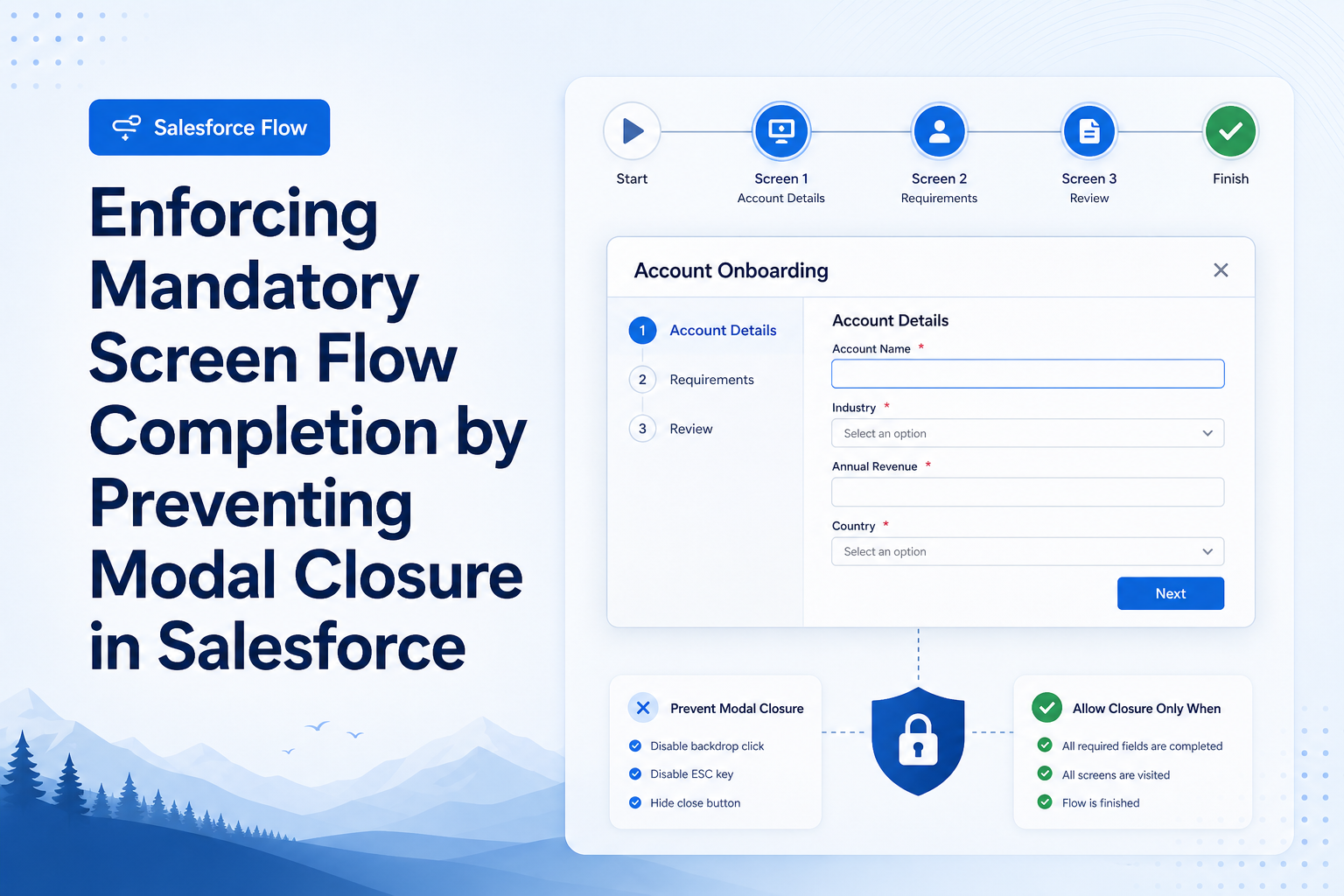
Salesforce Screen Flows are widely used to guide users through business processes and collect information. However, when a Screen Flow is launched as a modal popup, users can bypass the process by clicking the modal close ("X") button, pressing the Escape (Esc) key, or using the standard Flow navigation buttons.
In our implementation, users were required to update Account information before proceeding. Since Salesforce does not provide a standard configuration to prevent users from closing or skipping the flow, a custom solution was implemented using Lightning Web Components (LWC), Apex, and Flow navigation events.
This article explains how we enforced the completion of a mandatory Screen Flow by hiding the modal close button, disabling the Escape key, removing standard Flow navigation controls, and allowing users to proceed only after successful completion of the required action.
Business Requirement
The requirement was straightforward. Whenever users launched the "Submit Form" Screen Flow, they had to update the Account information before proceeding.
Users should not be able to:
- Close the modal using the "X" button.
- Press the Escape key to dismiss the popup.
- Skip the process using the standard Flow Next button.
- Navigate backward using the Previous button.
- Pause the Flow.
The process had to be completed before users could continue.
Solution
To enforce the mandatory process, the following approach was implemented:
- A custom Lightning Web Component was embedded inside the Screen Flow.
- The modal close ("X") button was hidden dynamically using JavaScript.
- The Escape key functionality was intercepted and disabled.
- The standard Flow footer was hidden.
- Account updates were performed using an Apex method.
- After successful completion, the component automatically navigated to the next Flow screen.
This ensured that the user had only one available path: complete the process successfully.
Step-by-Step Guide
Step 1: Build the Lightning Web Component
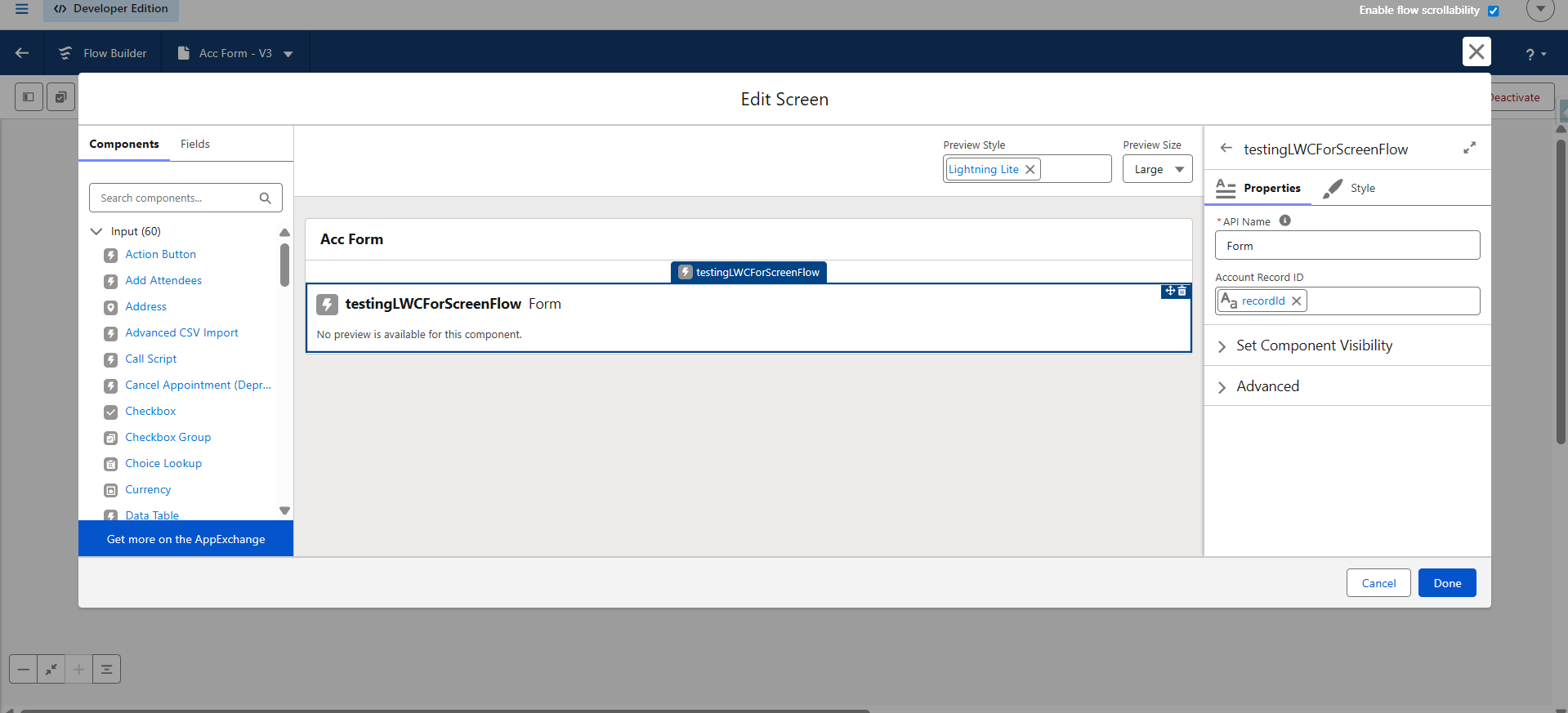
A custom Lightning Web Component was created based on the requirement.
Step 2: Create the Screen Flow
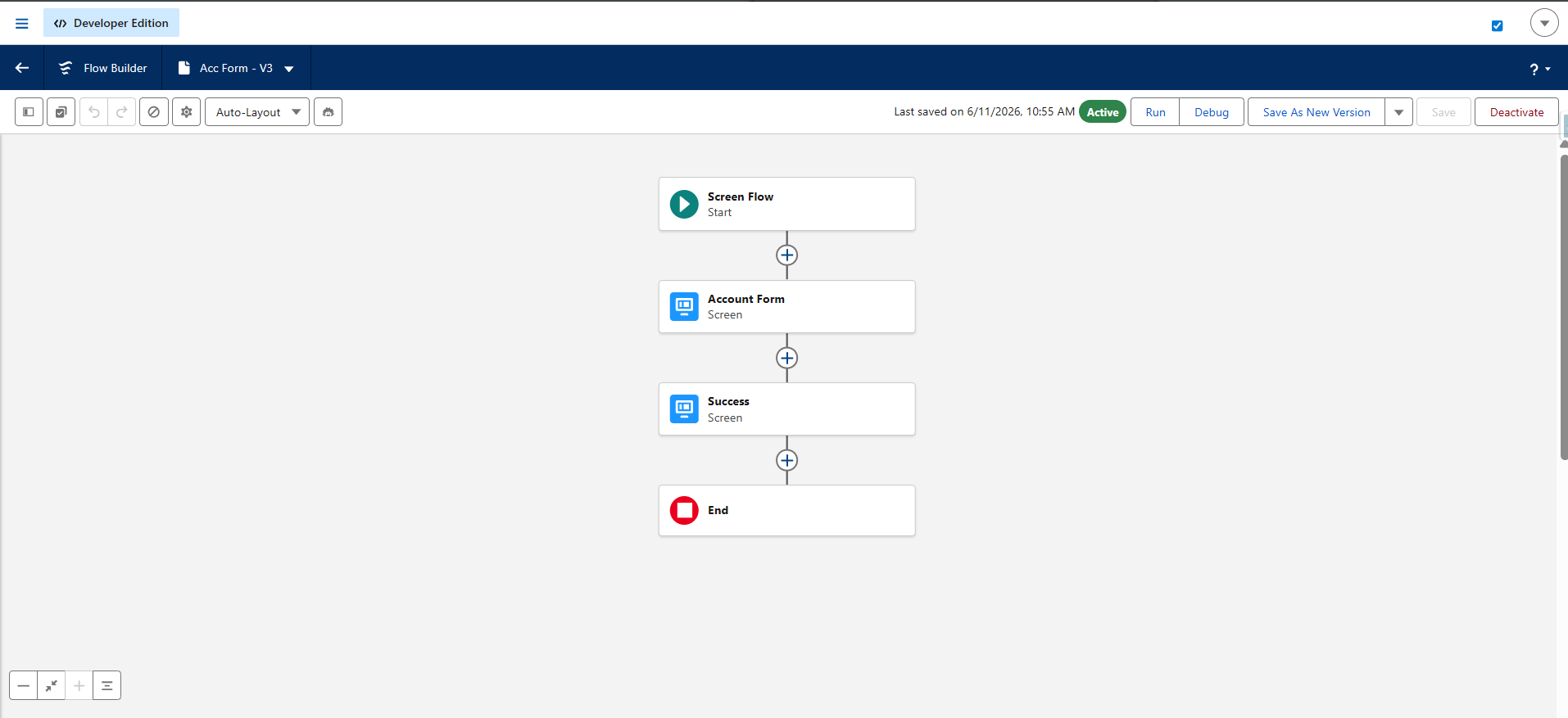
A Screen Flow was created to collect and update Account information. The flow was configured as a modal pop-up and launched from the Account record page with the LWC created. After activation, the Screen Flow displayed the mandatory update screen.
Step 3: Hide the Modal Close Button
During testing, it was observed that users could click the modal close ("X") button and bypass the process. Since Salesforce does not provide a native option to disable this button, JavaScript was used to hide it.
When the component loads:
- The close button is located using its DOM selector.
- The button is hidden.
- A flag variable prevents repeated execution.
This ensured that users could not exit using the close icon.
On connectedCallback:
const closeButton = document.querySelector('.slds-modal__close');

if (closeButton) {
    closeButton.style.display = 'none';
    this.closeButtonHidden = true;
}
Add this code to hide the close button.
Step 4: Prevent Closure Using the Escape Key
After hiding the close button, another issue was identified. Users could still press the Escape (Esc) key to dismiss the modal.
To address this, a keyboard event listener was added when the component was initialized.
The implementation:
- Listened for keydown events.
- Checked whether the pressed key was Escape.
- Prevented the default behaviour.
- Stopped the event from propagating further.
The event listener was removed when the component was destroyed. This prevented users from bypassing the process using keyboard shortcuts.
On connectedCallback:
this.handleEscKey = this.handleEscKey.bind(this);

document.addEventListener(
    'keydown',
    this.handleEscKey,
    true
);
Add this to stop the Esc key from closing the screen flow.
Step 5: Restore Default Behaviour
Since the component modifies the modal behaviour, it was important to restore the original functionality after the process was completed.
Using the disconnectedCallback lifecycle hook:
- The close button was made visible again.
- The Escape key listener was removed.
- Internal flags were reset.
This prevented unintended side effects on other Salesforce modals.
On disconnectedCallback:
if (this.escListenerAdded) {
    document.removeEventListener(
        'keydown',
        this.handleEscKey,
        true
    );

    this.escListenerAdded = false;
}

const closeButton = document.querySelector('.slds-modal__close');

if (closeButton && this.closeButtonHidden) {
    closeButton.style.display = '';
    this.closeButtonHidden = false;
}
This code will make the buttons and Esc functionality work normally on next screens.
Step 6: Disable Standard Flow Navigation
The standard Flow footer was disabled. The following buttons were hidden:
- Next
- Previous
- Pause
This prevented users from navigating through the Flow using Salesforce's default controls. Only the custom action remained available.
Final User Experience
The user sees:
- The Submit Form modal.
- The mandatory Account update form.
- The custom Update Account (Apex) button.
The user does not see:
- The modal close ("X") button.
- The Flow Next button.
- The Flow Previous button.
- The Flow Pause button.
The user cannot use:
- The Escape key.
The only available option is to complete the required process successfully.
Advantages
- Prevents users from bypassing mandatory business processes.
- Improves compliance with organisational requirements.
- Provides better control over Screen Flow execution.
- Enhances the overall user experience.
- Offers flexibility through custom Apex logic.
- Can be reused for multiple mandatory flows.
Disadvantages
- Relies on Salesforce's current DOM structure.
- Future Salesforce UI updates may require modifications.
- Requires custom Lightning Web Component development.
- Additional regression testing is recommended after Salesforce releases.
- Disabling the Escape key overrides expected modal behaviour and should be used only when justified by business requirements.
Conclusion
Although Salesforce Screen Flows provide powerful functionality out of the box, there are situations where standard behaviour does not completely satisfy business requirements.
In this implementation, users were required to complete an important Account update process without the possibility of bypassing it. By combining Screen Flows, Lightning Web Components, Apex, DOM manipulation, keyboard event handling, and Flow navigation events, we successfully enforced the completion of the process while maintaining a seamless user experience.
This approach proved to be a practical solution for mandatory business scenarios where user actions must be completed before proceeding further within Salesforce.