Building a @Mention Notification System in Salesforce LWC
Implement a real-time @Mention notification system using Salesforce Lightning Web Components and Apex.
Salesforce LWC Developer
1. Abstract
While developing a Project Management Tool on Salesforce, a key requirement was enabling team collaboration through task comments. To improve communication, an @mention feature was implemented, allowing users to tag teammates directly within comments. The solution was built entirely on Salesforce and includes user suggestions, mention detection, and in-app notifications that navigate users directly to the relevant task. This feature streamlined collaboration and improved team engagement within the application.
| Attribute | Detail |
|---|---|
| Platform | Salesforce (LWC + Apex) |
| Objects Used | Assignment__c, Comment__c, Notification__c (Custom) |
| UI Pattern | @ triggered dropdown → select name → create notification |
| Project | ProjectFlow — Internal Project Management Tool |
2. Solution
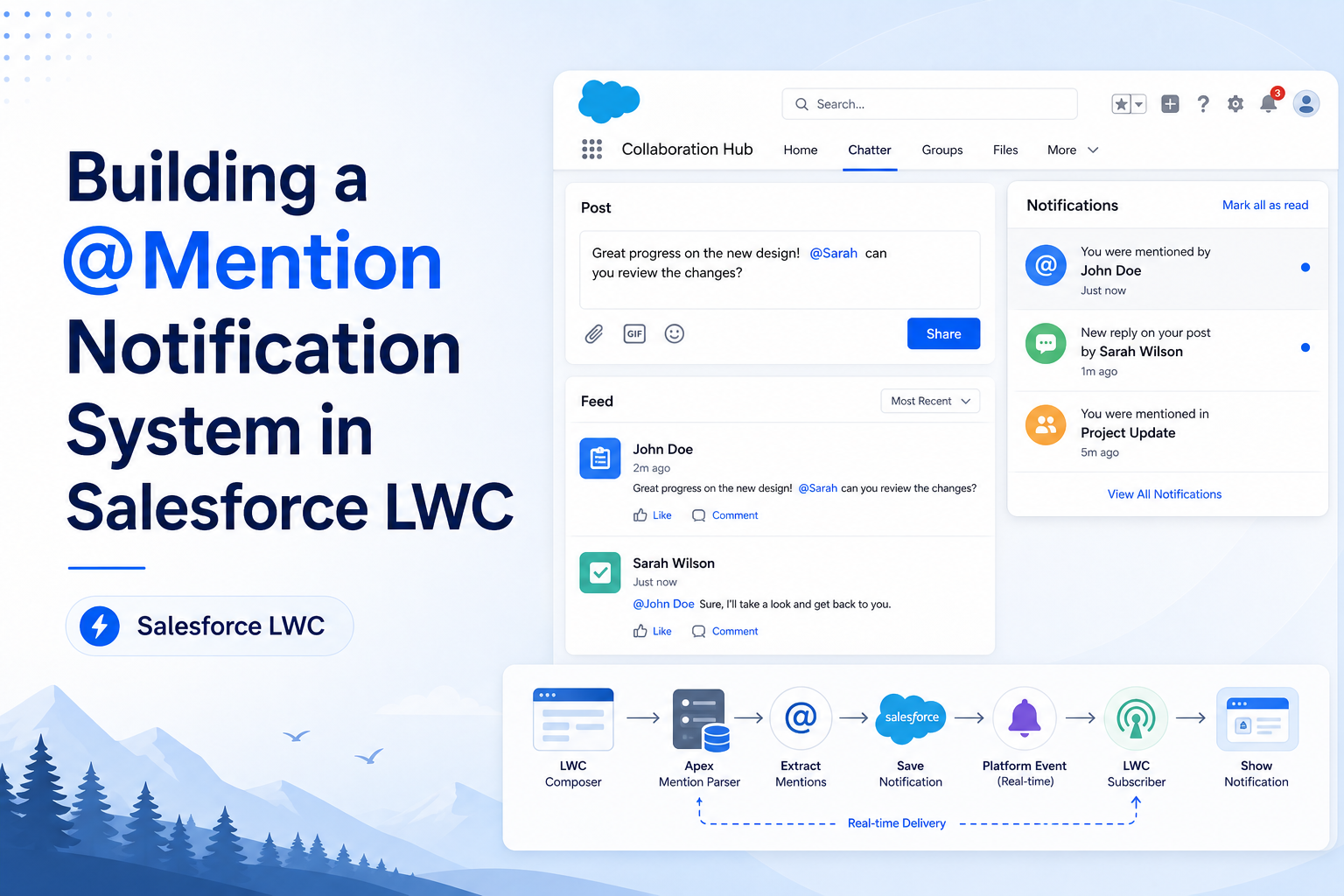
The solution was built entirely inside Salesforce without any external notification service. It has three connected pieces — the comment input in LWC, the Apex backend, and the notification bell in the header.
The Comment Box — Detecting @
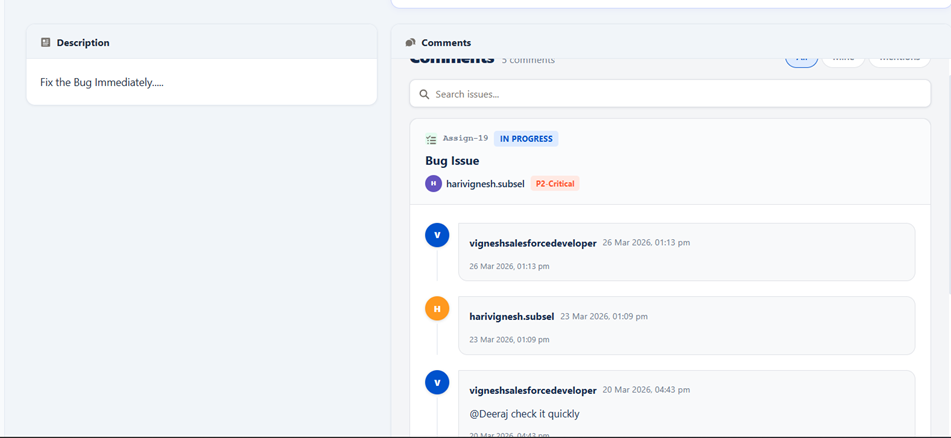
Each task in our tool has an Assignment Detail page where team members can leave comments. The comment input is a text area in an LWC component. When someone types @, the component detects the keypress, fires an Apex call to fetch the list of community users (team members), and renders them as a dropdown right below the comment box — just like Jira or Slack.
When the user clicks a name from the dropdown, the name gets inserted into the comment text and the selected User Id is stored separately. That Id is what the backend uses to create the notification.
The Backend — Saving the Comment and Creating Notifications
When the comment is submitted, a single Apex method handles two things: saving the comment record against the task, and creating a Notification record for each user who was mentioned. Each notification stores the recipient, a short message, and a lookup to the task. Status defaults to Unread.
All notification records are inserted in one DML statement to stay within Salesforce governor limits, regardless of how many people were tagged in the comment.
The Bell Icon — Showing and Acting on Notifications
The Header LWC component has a bell icon that queries unread Notification records for the currently logged-in user and shows a count badge. Clicking the bell opens a dropdown with recent notifications showing message text and timestamps.
Clicking any notification marks it as Read and uses NavigationMixin to take the user directly to the Assignment Detail page of the task where they were mentioned — no searching, no filtering, straight to the right place.
Full Flow
User types @ in comment      → Dropdown shows team member names
User selects a name          → Name inserted into comment, User Id stored
User submits comment         → Apex saves comment + creates Notification records
Bell icon updates            → Unread count badge appears on header
User clicks notification     → Marked as Read, navigated directly to the task
3. Step-by-Step Guide
Create the Notification Custom Object
In Salesforce Setup, create a custom object called Notification__c with these fields: Recipient__c (Lookup to User), Message__c (Long Text), Related_Task__c (Lookup to Assignment__c), and Status__c (Picklist: Unread / Read). CreatedDate is automatic. This object is the backbone of the whole notification system.
Detect the @ Symbol in the LWC Comment Input
In the comment LWC, add an onkeyup handler to the text area. Whenever the input contains @, extract the characters typed after it and call an Apex method that returns matching community users. Store the result in a reactive variable to render the dropdown.
Render the Dropdown and Capture the Selection
Use conditional rendering (if:true) to show the user list as a dropdown below the comment box. When the user clicks a name, insert it into the comment text and store the selected User Id in a separate tracked array. Hide the dropdown after selection.
Submit the Comment with Mentioned User Ids
On submit, call an Apex method with three parameters: the comment text, the Assignment Id of the current task, and the list of mentioned User Ids collected from selections. Validate that the comment is not empty before making the call.
Save the Comment and Create Notification Records in Apex
In the Apex method, first insert the Comment__c record linked to the Assignment. Then loop through the mentioned User Ids and build a Notification__c record for each one. Collect all records in a list and do a single insert. This keeps the DML count to two regardless of how many users were tagged.
Show the Unread Count on the Bell Icon
In the Header LWC, on connectedCallback, call an Apex method that returns the count of unread Notification__c records for the current user. Bind this count to a badge on the bell icon. Refresh the count whenever a new comment is submitted.
Show the Notification Dropdown on Bell Click
On bell click, call an Apex method that returns the latest 15–20 Notification records for the current user ordered by CreatedDate descending. Display each record's message and timestamp. Show "No new notifications" if the list is empty.
Navigate to the Task on Notification Click
When a notification is clicked, call Apex to update its Status__c to Read, then use NavigationMixin.Navigate with the Related_Task__c Id to open the Assignment Detail page. The user lands directly on the task where they were mentioned. Update the bell badge count after navigation.
4. Conclusion
This was one of those features that looked straightforward on paper but had a few moving parts once we got into it. The trickiest bit was the @ detection in LWC — making sure the dropdown appeared cleanly, disappeared after a selection, and that the right User Id was captured even when multiple people were tagged in the same comment.
Once the LWC side worked, the Apex part was clean. The notification object is intentionally simple — it stores just what it needs to. The bell icon in the header ties everything together and gives the user a clear, familiar way to see what needs their attention.
The biggest benefit looking back was that the entire feature lives inside Salesforce. No third-party tools, no external webhooks, no extra cost. If your team already works on Salesforce, there is no reason to go outside the platform for something like this.
The same pattern is also reusable. After we built this for @mentions, we extended the same notification object and Apex method to send alerts when a task was reassigned or when a new sprint started. Once the foundation is in place, adding new triggers takes very little effort.
5. Images / Screenshots
The original article includes key screens from the @mention notification feature, showing the comment box with the @ dropdown, the bell icon with the unread count badge, and the notification list with navigation to the related task.