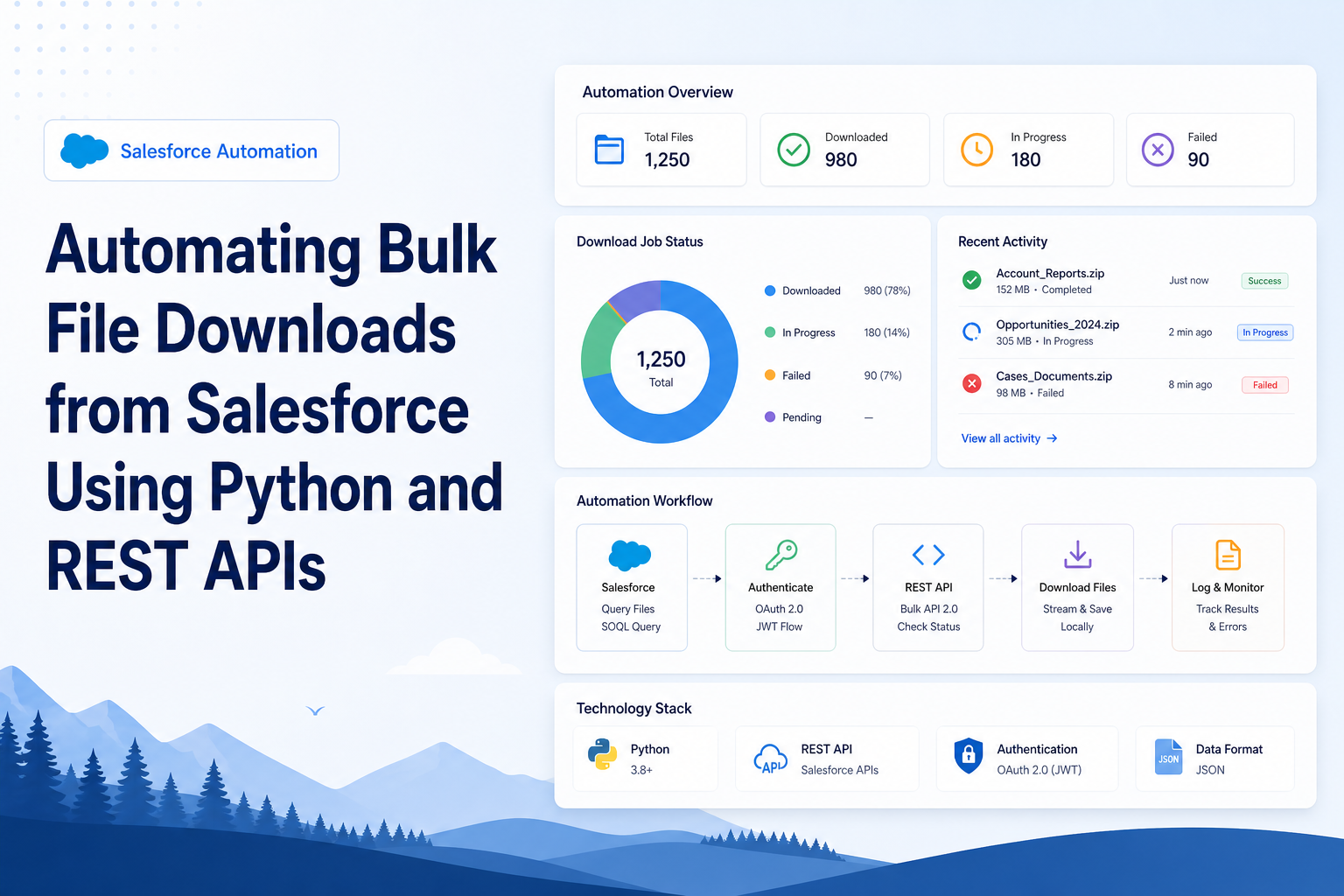
Automating Bulk File Downloads from Salesforce Using Python and REST APIs
Learn how to automate bulk file downloads from Salesforce using Python, REST APIs, and secure authentication.
Salesforce Developer
Abstract
In enterprise environments, Salesforce stores customer-related files such as documents, images, and attachments linked to records like Contacts and Accounts. Manually downloading these files becomes difficult and time-consuming during migration or backup activities.
This concept demonstrates how Python automation can connect with Salesforce using REST APIs and automatically download files associated with Contact records. The solution uses Python libraries such as simple-salesforce and requests to retrieve file details and download the latest file versions to a local machine.
This implementation reduces manual effort, improves efficiency, and provides a scalable solution for bulk file extraction from Salesforce.
Introduction
Salesforce provides robust file management through objects such as:
- ContentDocument
- ContentDocumentLink
- ContentVersion
These objects collectively manage file storage, relationships, and versioning within the Salesforce platform.
In many business scenarios, organizations require:
- Backup of customer files
- Migration of attachments
- Exporting files for external processing
- Archival of documents
- Integration with external systems
Performing these activities manually is inefficient when dealing with thousands of records. Therefore, automation becomes essential.
This document explains the implementation of a Python-based utility that automates Salesforce file download operations.
Objectives
The primary objectives of this solution are:
- Connect securely to Salesforce using API authentication
- Retrieve Contact records from Salesforce
- Identify files linked to Contacts
- Download latest file versions automatically
- Store files in a structured local directory
- Reduce manual operational effort
- Provide reusable automation for future integrations
Solution Architecture
Process Flow
Authenticate into Salesforce
        ↓
   Fetch Contact records
        ↓
  Identify linked documents
        ↓
 Retrieve latest file versions
        ↓
 Download files using REST API
        ↓
     Store files locally
Prerequisites
Before implementation, the following prerequisites are required:
- Python installed
- Salesforce account with API access
- Security token generated
- Internet connectivity
- Required Python libraries installed
Step-by-Step Implementation
Step 1 — Install Python
Download Python from: https://www.python.org/downloads/
During installation:
- Enable "Add Python to PATH"
- Click "Install Now"
Verification:
python --versionExpected Output:
Python 3.12.2Step 2 — Install Required Libraries
Run the following command in CMD:
pip install simple-salesforce requestsInstalled Libraries:
| Library | Purpose |
|---|---|
| simple-salesforce | Salesforce connectivity |
| requests | HTTP communication |
Step 3 — Generate Salesforce Security Token
Steps:
- Login to Salesforce
- Click Profile Icon
- Open Settings
- Navigate to "Reset My Security Token"
- Click "Reset Security Token"
Salesforce sends the token to the registered email.
Step 4 — Create Download Directory
Example:
C:\SalesforceImagesThis directory stores downloaded files.
Step 5 — Create Python Script
Create a Python file: Download_files.py
Paste the automation script.
Sample Python Script
import os
import requests
from simple_salesforce import Salesforce

# Salesforce Login
SF_USERNAME = "your_email@company.com"
SF_PASSWORD = "yourPassword"
SF_TOKEN = "yourSecurityToken"

# Download Folder
DOWNLOAD_DIR = r"C:\download from salesforce"
os.makedirs(DOWNLOAD_DIR, exist_ok=True)

# Connect Salesforce
sf = Salesforce(
    username=SF_USERNAME,
    password=SF_PASSWORD,
    security_token=SF_TOKEN
)

instance = f"https://{sf.sf_instance}"
headers = {
    "Authorization": f"Bearer {sf.session_id}"
}

print("Connected to Salesforce")

# Get Contacts
query = """
SELECT Id, FirstName, LastName
FROM Contact
"""
contacts = {}
result = sf.query_all(query)
for c in result["records"]:
    contacts[c["Id"]] = c

print(f"Contacts Found: {len(contacts)}")

# Get Files Linked To Contacts
contact_ids = list(contacts.keys())
chunk_size = 200
all_links = {}

for i in range(0, len(contact_ids), chunk_size):
    chunk = contact_ids[i:i+chunk_size]
    ids = "','".join(chunk)
    soql = f"""
    SELECT LinkedEntityId, ContentDocumentId
    FROM ContentDocumentLink
    WHERE LinkedEntityId IN ('{ids}')
    """
    res = sf.query_all(soql)
    for r in res["records"]:
        all_links[r["ContentDocumentId"]] = r["LinkedEntityId"]
    print(f"Processed {min(i+chunk_size, len(contact_ids))}")

print(f"Documents Found: {len(all_links)}")

# Get Latest Content Versions
doc_ids = list(all_links.keys())
versions = {}

for i in range(0, len(doc_ids), chunk_size):
    chunk = doc_ids[i:i+chunk_size]
    ids = "','".join(chunk)
    soql = f"""
    SELECT Id,
           ContentDocumentId,
           Title,
           FileExtension
    FROM ContentVersion
    WHERE ContentDocumentId IN ('{ids}')
    AND IsLatest = true
    """
    res = sf.query_all(soql)
    for r in res["records"]:
        versions[r["ContentDocumentId"]] = r

print(f"Versions Found: {len(versions)}")

# Download Files
success = 0
for doc_id, version in versions.items():
    contact_id = all_links.get(doc_id)
    contact = contacts.get(contact_id, {})
    first = contact.get("FirstName", "Unknown") or "Unknown"
    last = contact.get("LastName", "Unknown") or "Unknown"
    ext = version.get("FileExtension", "bin") or "bin"
    ver_id = version["Id"]

    filename = f"{last}_{first}_{contact_id}.{ext}"
    filename = filename.replace(" ", "_")
    filepath = os.path.join(DOWNLOAD_DIR, filename)

    url = f"{instance}/services/data/v59.0/sobjects/ContentVersion/{ver_id}/VersionData"

    try:
        response = requests.get(
            url,
            headers=headers,
            stream=True
        )
        response.raise_for_status()

        with open(filepath, "wb") as f:
            for chunk in response.iter_content(chunk_size=8192):
                f.write(chunk)

        success += 1
        if success % 100 == 0:
            print(f"Downloaded {success}")

    except Exception as e:
        print(f"Failed: {filename}")
        print(e)

print("DONE")
print(f"Downloaded: {success}")SF_USERNAME, SF_PASSWORD, and SF_TOKEN with your own credentials before running the script.Step 6 — Retrieve Contact Records
SOQL Query:
SELECT Id, FirstName, LastName
FROM Contact
Purpose:
- Retrieves Contact information
- Stores Contact IDs for further processing
The query can also be extended with conditions to retrieve specific records only.
Step 7 — Retrieve Linked Files
SOQL Query:
SELECT LinkedEntityId, ContentDocumentId
FROM ContentDocumentLink
Purpose: Identifies files attached to Contacts.
Step 8 — Retrieve Latest File Versions
SOQL Query:
SELECT Id,
       ContentDocumentId,
       Title,
       FileExtension
FROM ContentVersion
WHERE IsLatest = true
Purpose: Retrieves the latest available file version.
Step 9 — Download Files
REST API Endpoint:
/services/data/v59.0/sobjects/ContentVersion/{VersionId}/VersionDataPurpose: Downloads binary file content. Files are stored locally using Python file handling.
Output Example
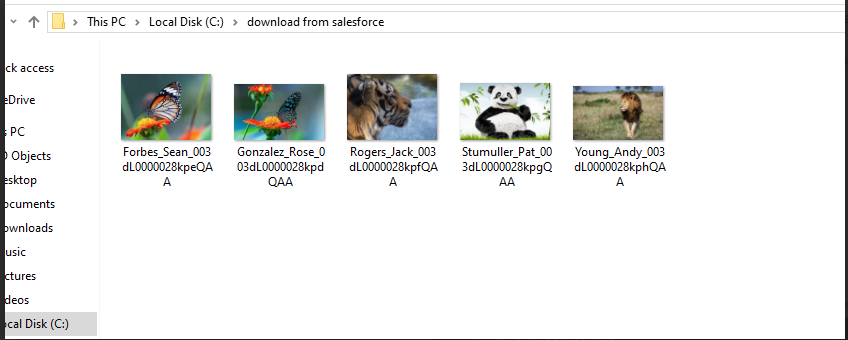
Downloaded files:
Smith_John_003XXXX.jpg
David_Robert_003YYYY.pdf
Console Output:
Connected to Salesforce
Contacts Found: 250
Documents Found: 400
Downloaded: 400
Error Handling
The implementation includes exception handling for:
- Invalid authentication
- Missing files
- API failures
- Network interruptions
Example:
try:
    response.raise_for_status()
except Exception as e:
    print(e)
Security Considerations
Sensitive information such as:
- Username
- Password
- Security Token
must never be hardcoded in production environments.
Recommended Best Practices:
- Use environment variables
- Encrypt credentials
- Use OAuth authentication
- Restrict API access permissions
Real-Time Business Use Cases
This solution can be used in:
- Data migration projects
- Salesforce backup solutions
- Enterprise integrations
- Compliance audits
- Document archival systems
- Bulk image extraction
Future Enhancements
Potential improvements include:
- Multi-threaded downloads
- OAuth authentication
- UI-based execution
- Cloud storage integration
- Logging framework
- Retry mechanism
- Scheduled automation
Conclusion
The Python-based Salesforce file extraction utility helps automate bulk file downloads from Salesforce records using REST APIs and SOQL queries.
Key Benefits
- Faster file extraction process
- Reduced manual effort
- Improved operational efficiency
- Supports bulk file downloads
- Scalable and reusable solution
This solution is useful for:
- Data migration
- Backup activities
- File archival
- Enterprise integrations
Screenshots
Below are sample files downloaded from a Salesforce org using the automation utility.