
Product Inquiry Chat Launch
Build an AI-powered product inquiry chat experience to provide instant customer assistance in Salesforce.
Salesforce Developer
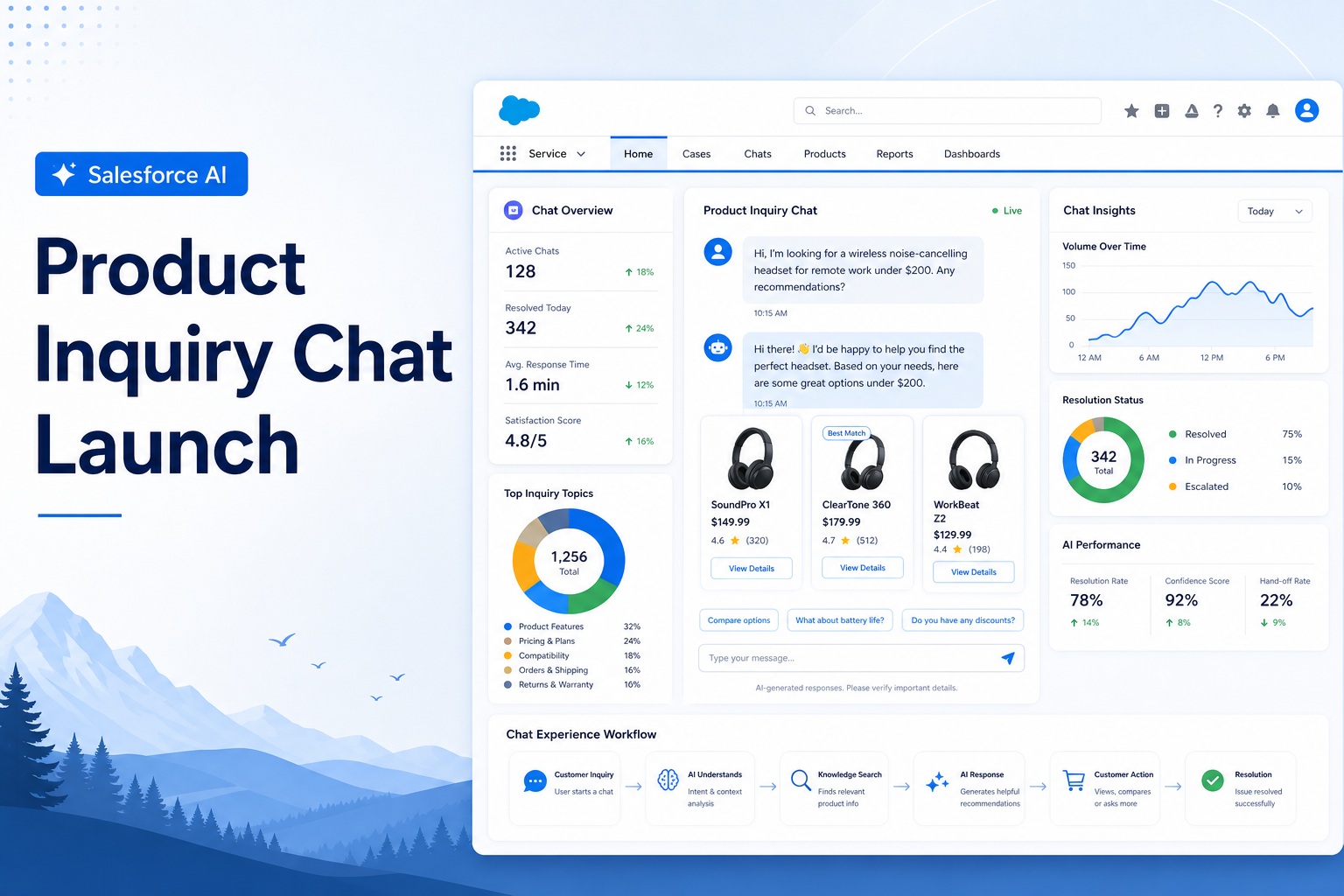
Overview
To improve customer engagement and provide instant assistance during product browsing, a custom Lightning Web Component (LWC) was developed to launch Salesforce Embedded Messaging directly from a product page. The solution enables users to start a chat session by clicking an "Ask about this product" button, providing quick access to support agents or AI-powered assistance — all without leaving the current page.
The Solution
The implemented solution combines Salesforce Lightning Web Components (LWC) and Embedded Messaging APIs to deliver a seamless, in-page chat experience. A branded button appears directly on the product page, and upon user interaction, the component invokes the Salesforce Embedded Messaging utility API to open the chat window instantly.
This approach ensures customers can effortlessly reach support teams while actively browsing products — reducing friction, improving response times, and ultimately elevating overall customer satisfaction.
Key Features
- One-Click Chat Launch: Customers initiate a support chat with a single button click — no page redirects, no friction.
- Salesforce Embedded Messaging Integration: Leverages the robust Salesforce Embedded Messaging platform for reliable, scalable communication.
- Lightweight & Reusable LWC: The component is minimal by design, making it easy to deploy and maintain across any number of product pages.
- Enhanced Customer Engagement: Reduces support barriers and keeps customers engaged within the product browsing experience.
- Easy Deployment: Compatible with Lightning App Builder and Experience Cloud Site Builder for rapid rollout.
Step-by-Step Implementation Guide
Follow the six steps below to implement the Product Inquiry Chat Launch component in your Salesforce org.
Step 1: Create the Lightning Web Component
Create a new custom Lightning Web Component (LWC) in your Salesforce org. Name it descriptively — for example, customProductChat. This component will serve as the container for the chat trigger button and all associated logic.
Step 2: Add the Chat Launch Button
In the component's HTML template, add a clearly labeled button: "Ask about this product". Ensure the button is visually prominent and accessible, following your brand's design system.
Step 3: Implement the Click Handler
In the component's JavaScript file, create a method that listens for the button click event. This handler should first verify that the Salesforce Embedded Messaging API (embeddedservice_bootstrap) is available before attempting to launch the chat window, ensuring graceful degradation if the service is unavailable.
Step 4: Launch the Chat Window via the Utility API
Once the click is confirmed and the API is available, invoke the Embedded Messaging Utility API to open the chat interface. The key method call is:
window.embeddedservice_bootstrap.utilAPI.launchChat();This opens the chat window seamlessly within the current page context.
Step 5: Configure Salesforce Embedded Messaging
In Salesforce Setup, navigate to Setup > Messaging > Embedded Service Deployments and create a new Embedded Service Deployment. The configuration wizard covers the following stages:
- Navigate to the Embedded Service Deployments list via Salesforce Setup.
- Click "New Deployment" to begin creating your Embedded Service Deployment.
- Select "Enhanced Chat" as the deployment conversation type.
- Choose "Web" as the client interface for your deployment.
- Enter the Deployment Name, API Name, Domain, and select your Messaging Channel, then click Save.
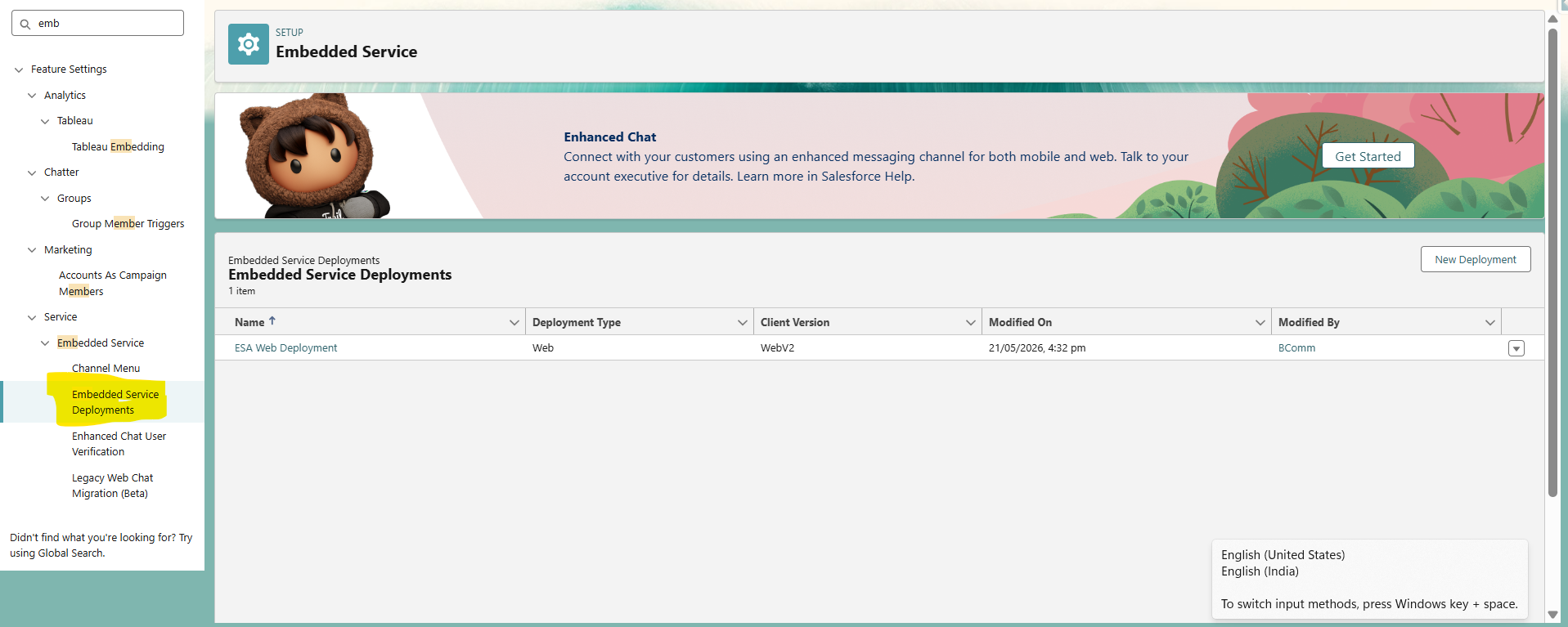
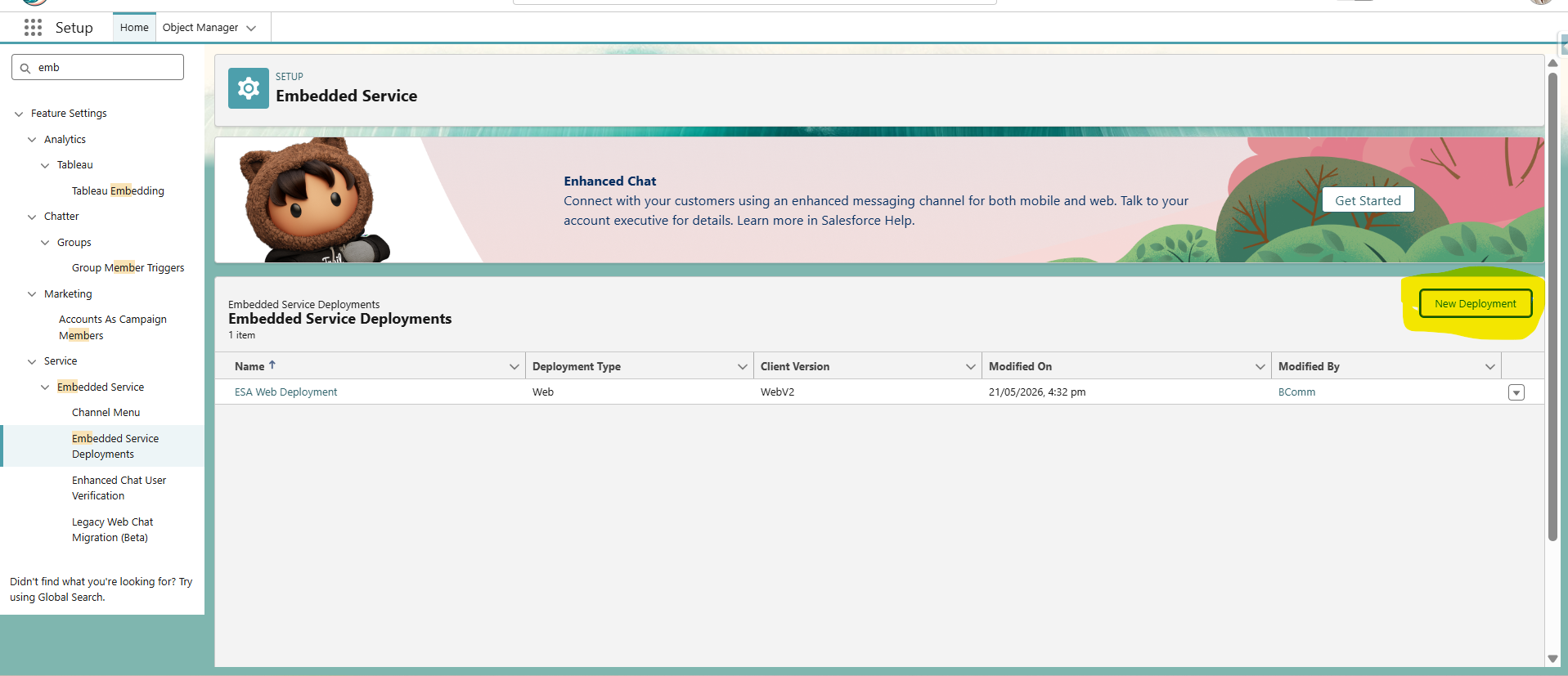
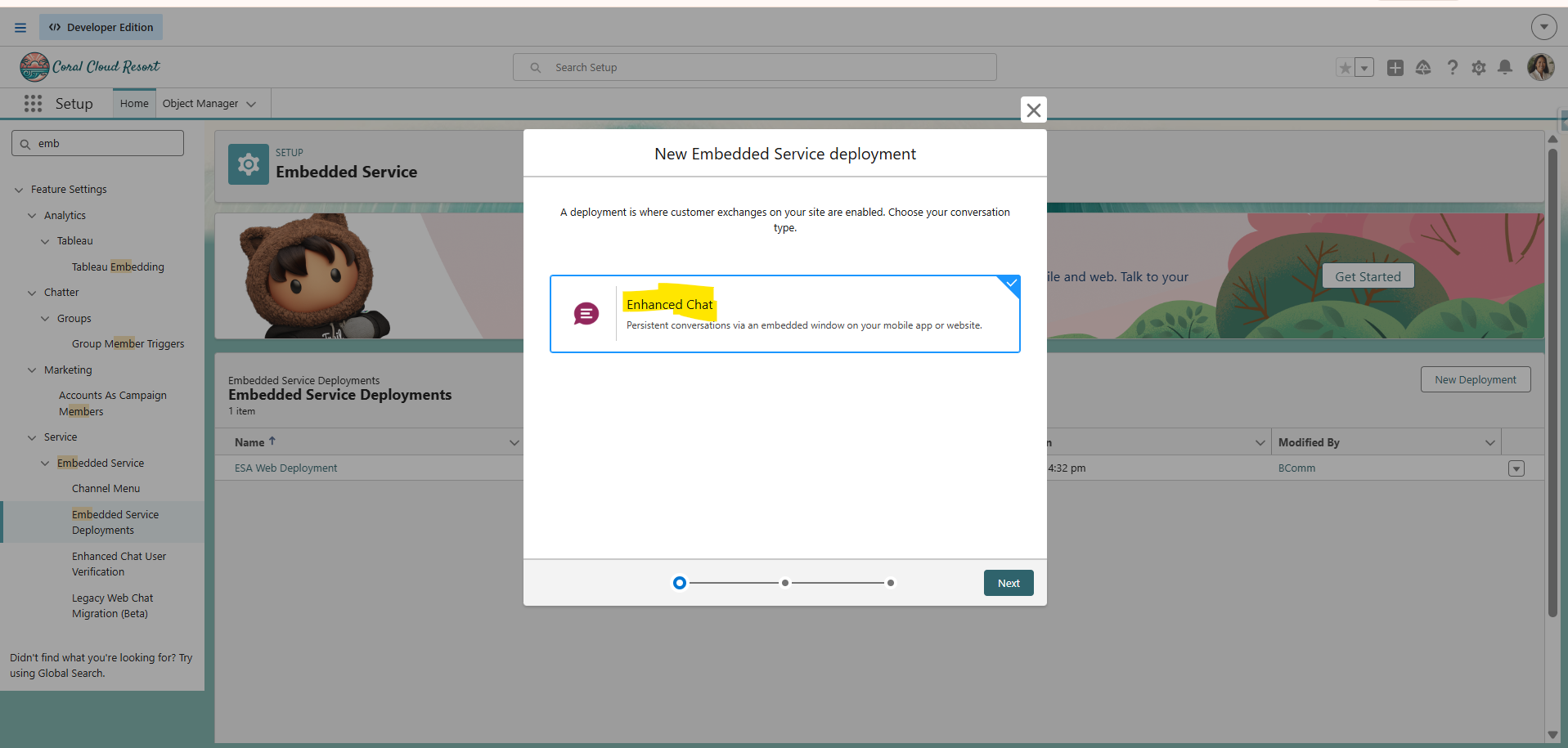
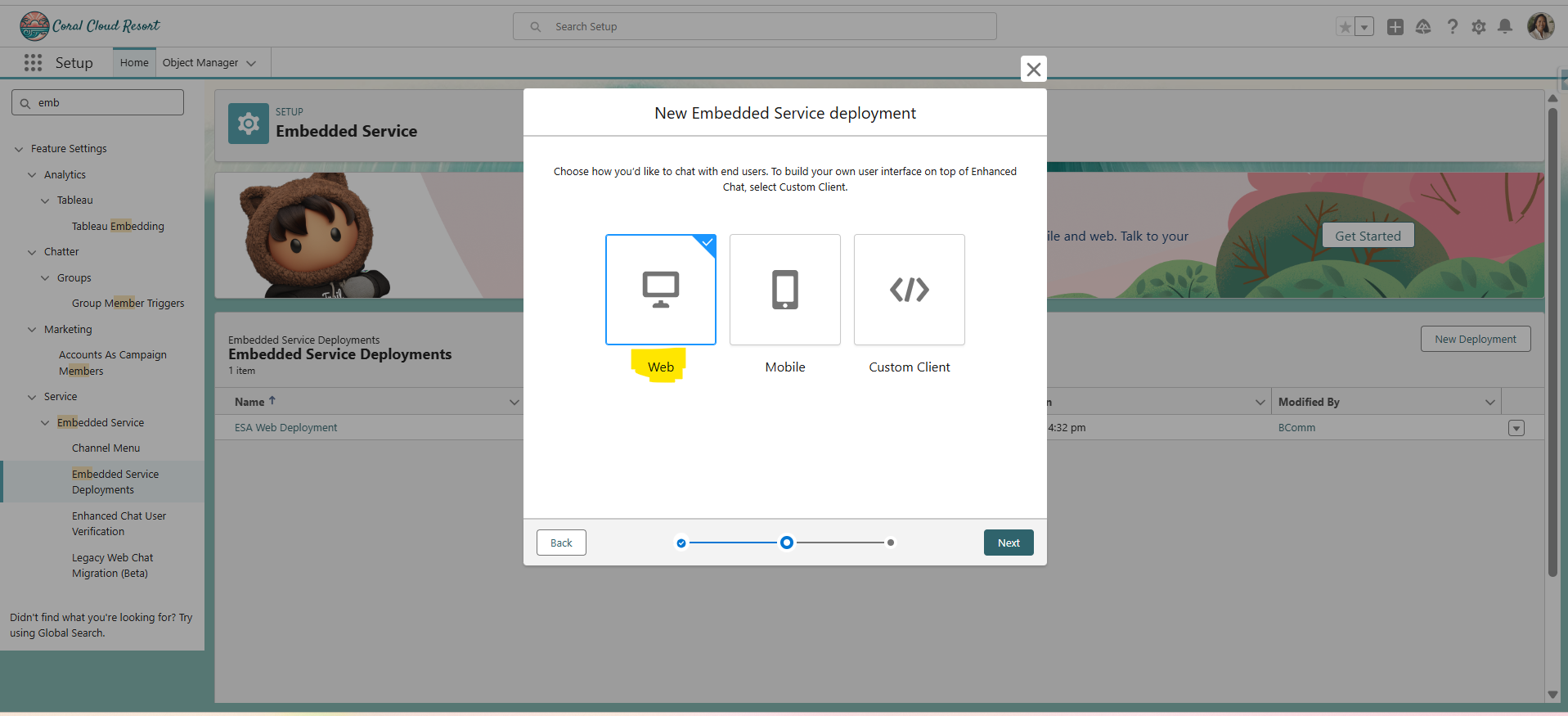
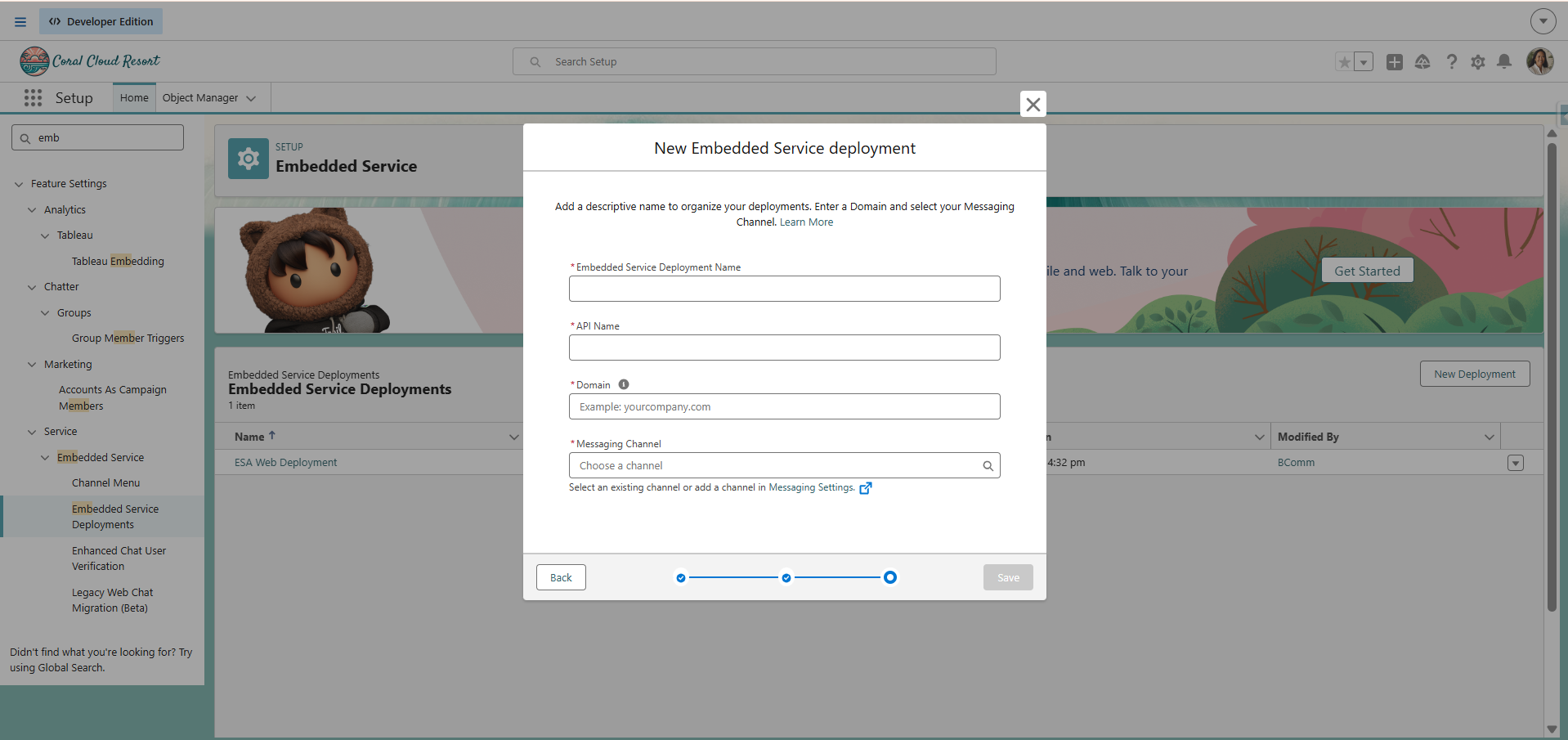
After entering the Embedded Service Deployment Name, API Name, and Domain, select the existing Messaging Channel from the dropdown list. The Messaging Channel would have already been created during the Agent setup and configuration process. Once the appropriate Messaging Channel is selected, click Save to create the Embedded Service Deployment successfully.
Step 6: Deploy and Test
Deployment:
- Add the customProductChat LWC to the desired Product Detail Page via the Lightning App Builder or Experience Cloud Site Builder.
- Install the Embedded Messaging Code Snippet (available under ESA Web Deployment > Code Snippet) on the target page or site.
- Assign the Embedded Service deployment to the correct Experience Cloud site or external website.
- Verify that the deployment is Active in Salesforce Setup.
Testing:
- Open the product page and click "Ask about this product" — the chat window should launch without console errors.
- Confirm Pre-Chat fields (if configured) display correctly before the chat begins.
- Conduct an end-to-end test ensuring messages reach the assigned agent or bot.
- Validate responsiveness on both desktop and mobile browsers.
- Test chat window close and reopen behavior on repeated clicks.
Pros & Cons at a Glance
| Advantages | Considerations |
|---|---|
| Quick and easy implementation with minimal configuration. | Requires Embedded Messaging to be configured in Salesforce Setup before deployment. |
| Significantly improves the customer browsing and support experience. | Dependent on the availability and uptime of the Salesforce Embedded Messaging service. |
| Enables real-time, two-way communication between customers and agents. | Requires an active internet connection for chat functionality to work. |
Conclusion
The Product Inquiry Chat Launch component delivers a simple yet powerful solution for enabling real-time customer support directly within the product browsing experience.
By combining Salesforce Embedded Messaging with the flexibility of Lightning Web Components, organizations can dramatically reduce the effort required for customers to seek help — exactly when and where they need it. The result is a frictionless support pathway that drives higher engagement, faster resolution times, and a measurably better customer experience across all product pages.